
Project Architect
All features
The landing shows the promise. Here is the detail: how each feature works, with room for screenshots and examples.
The whole bin, not just video
Video, audio (WAV, MP3…), images, sequences, titles, miscellaneous, effect layers: one coherent structure from ingest.
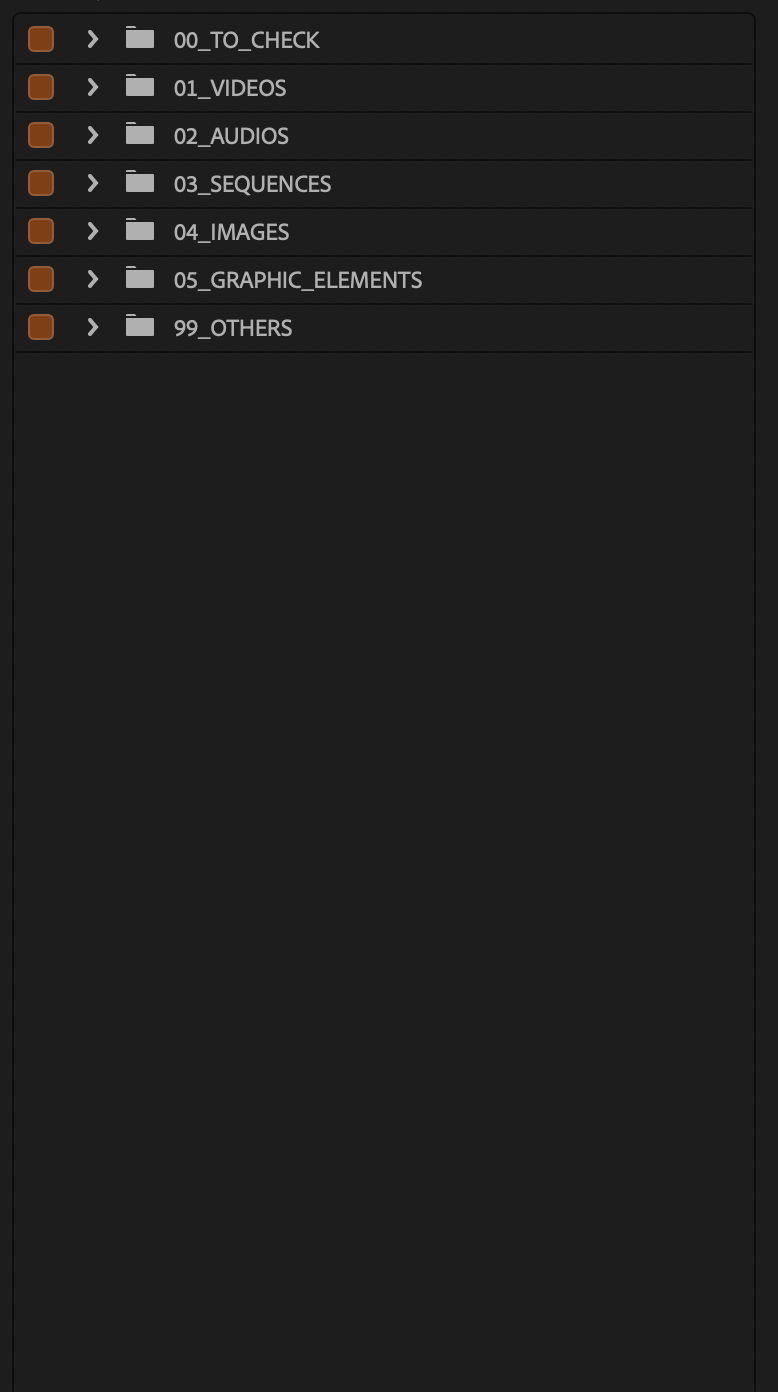
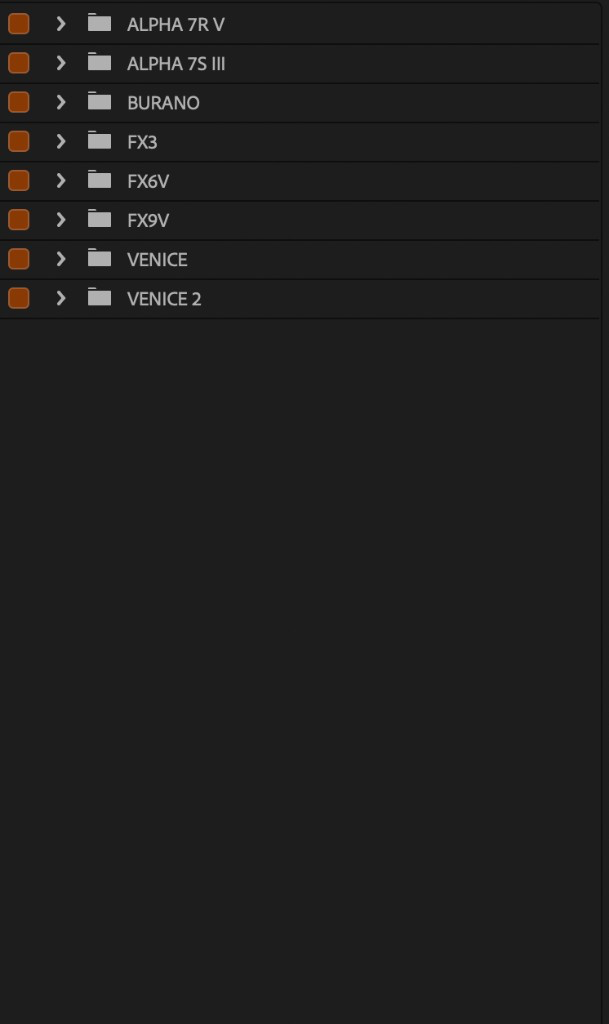
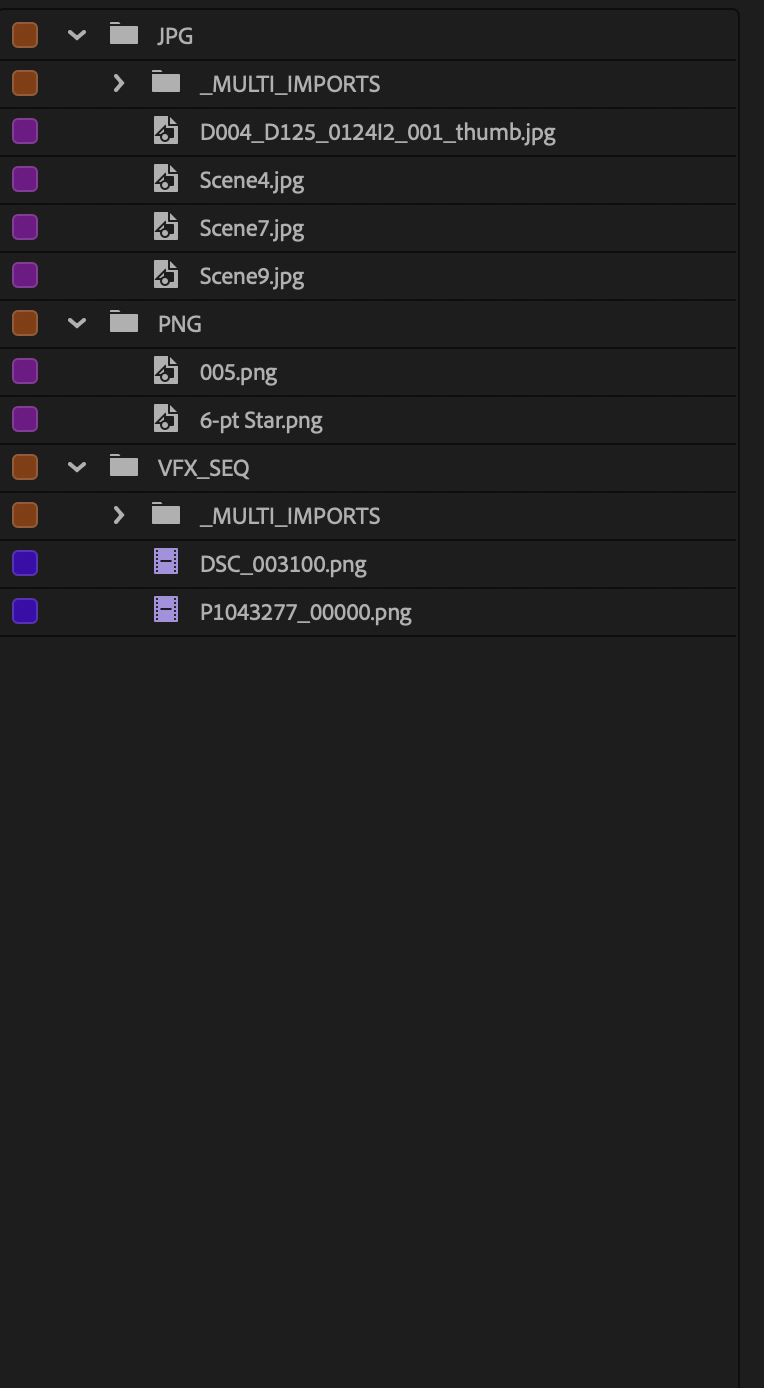
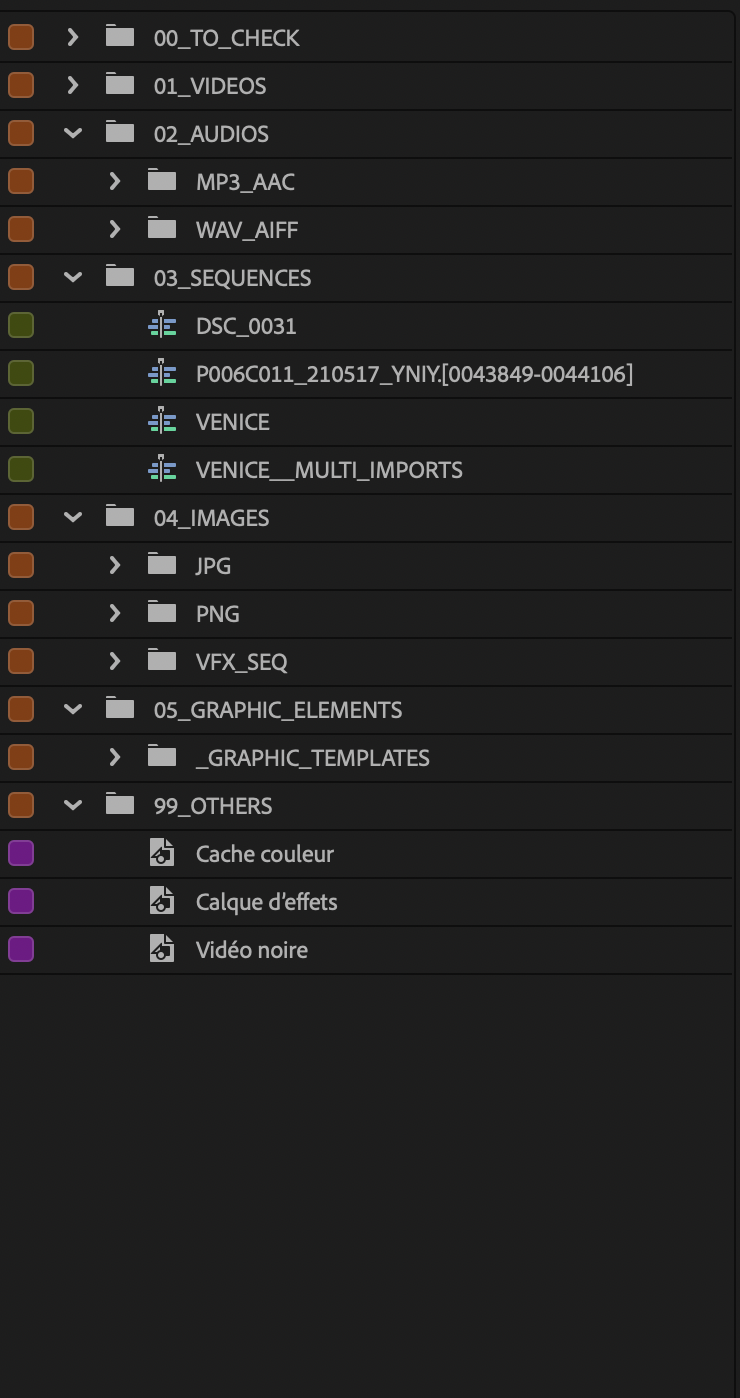
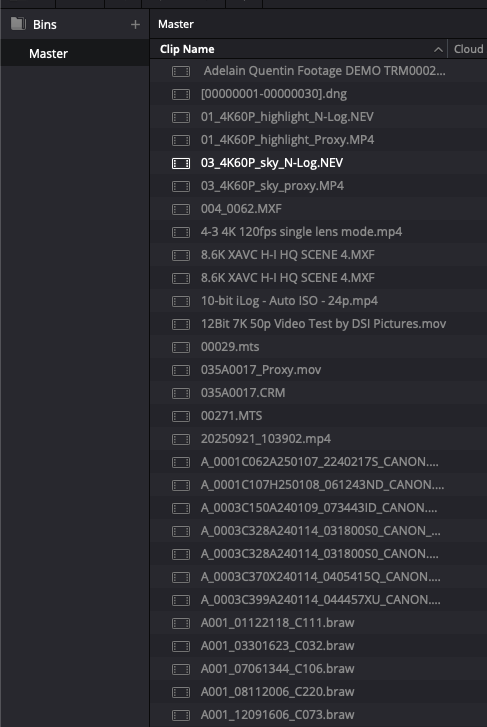
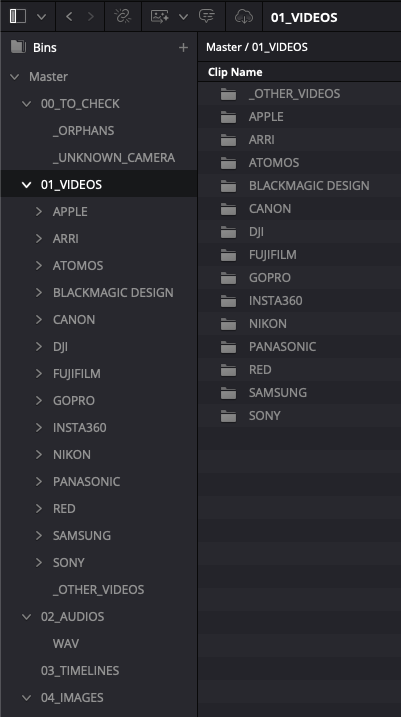
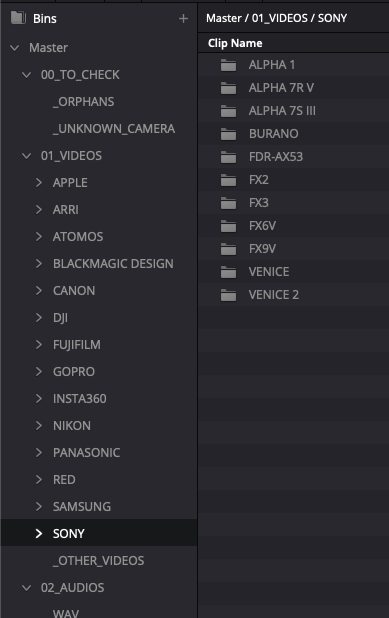
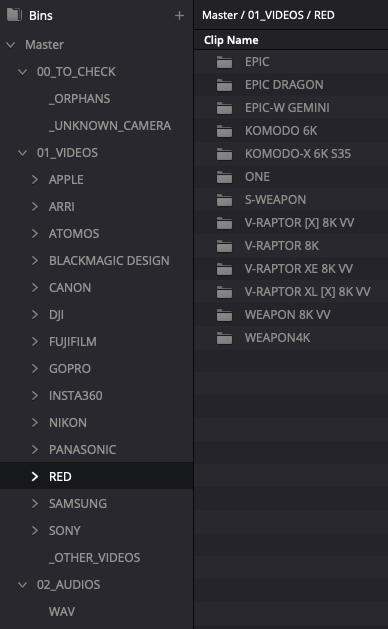
A Premiere Pro or DaVinci Resolve project is more than a pile of rushes. Audio, images, sequences, graphics, and misc items often land in the same chaos. Project Architect lays out a full tree from the first run.
- Video in its branch (with optional camera / day sub-sort)
- Audio, images, sequences, and graphics in their own folders
- Everything else filed without cluttering the rushes
- Doubtful cases isolated in TO_CHECK
You open a project you can cut from, not an inventory to rebuild by hand.
Whole project, or selection
Run on the entire project, or only on selected bins. Iterate on a client batch without touching the rest.
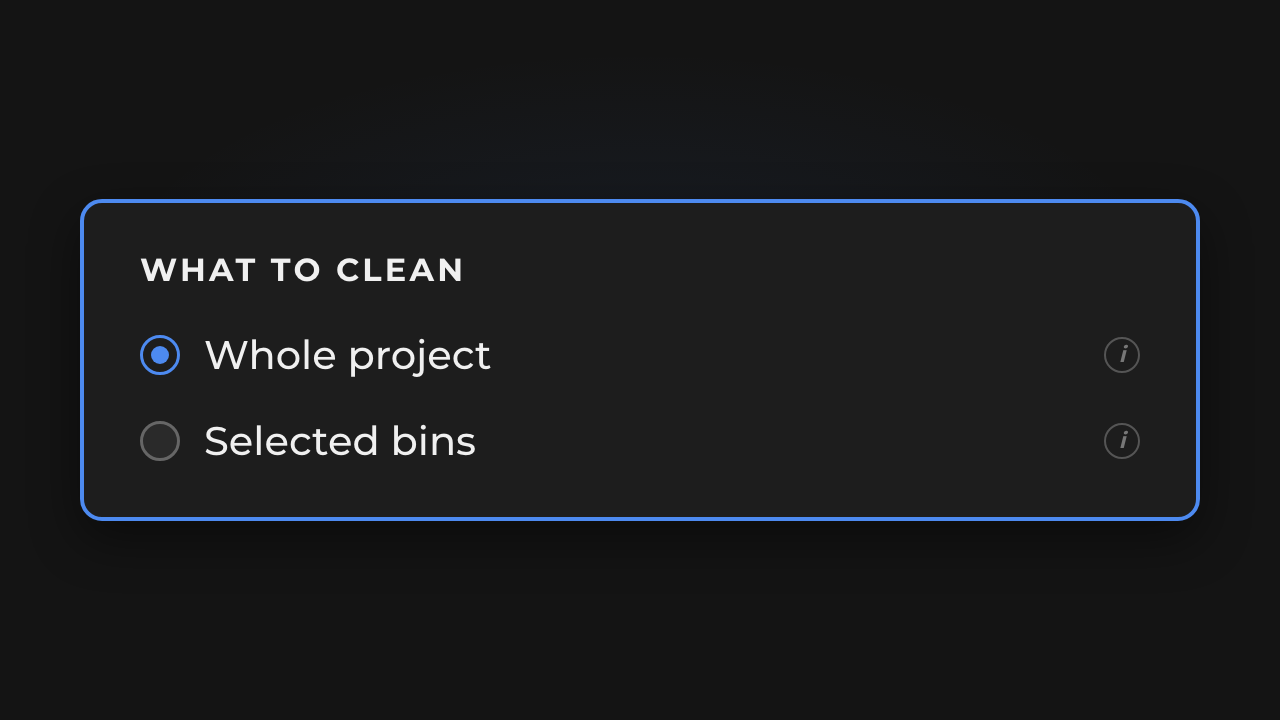
Not every run needs the whole project. Sometimes you only want to organize what just landed: one client batch, one shoot day, a few bins you selected in the Project panel.
- Whole project: a clean first pass on everything Premiere can reach
- Selection
- Useful to iterate after a new import without reshuffling an already tidy tree
Pick the scope that matches the job, then run. Less risk, less noise.
SAFE or DIRECT
SAFE: simulate the run with a report before any changes. DIRECT: real execution, fast and efficient, when the plan is approved.
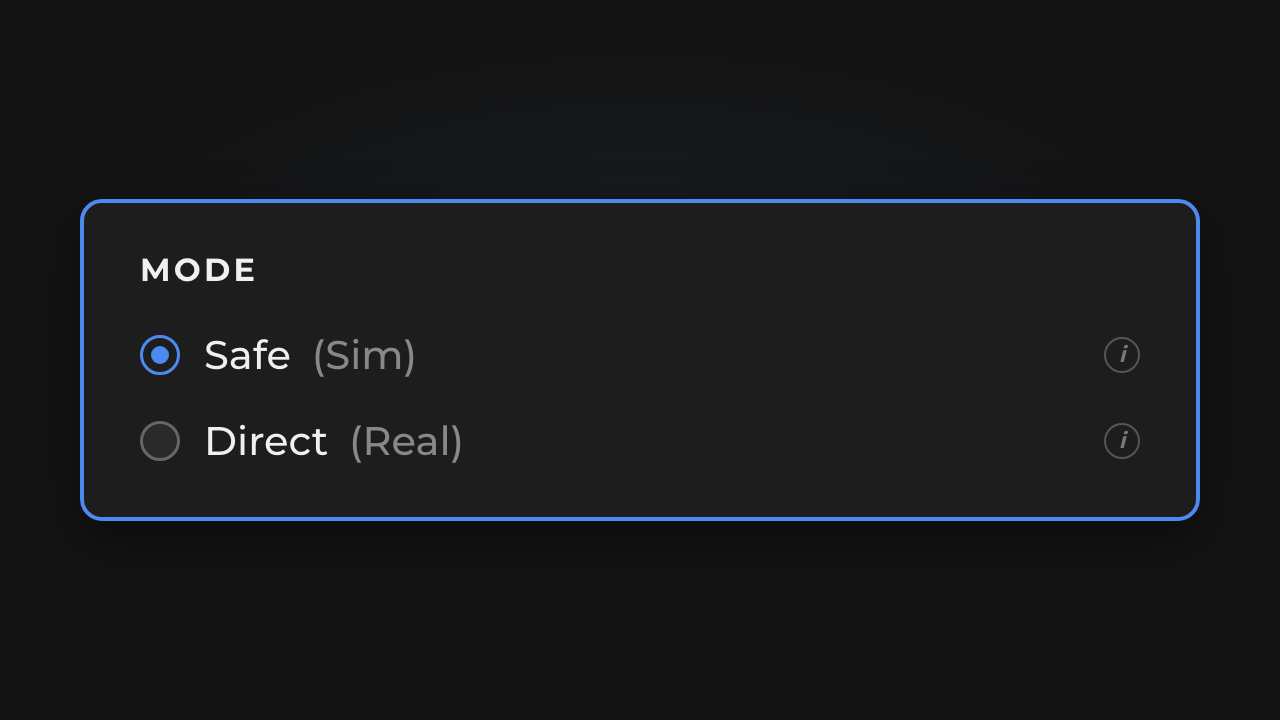
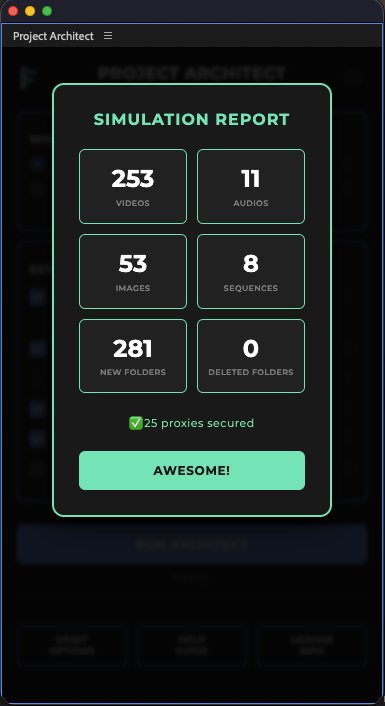
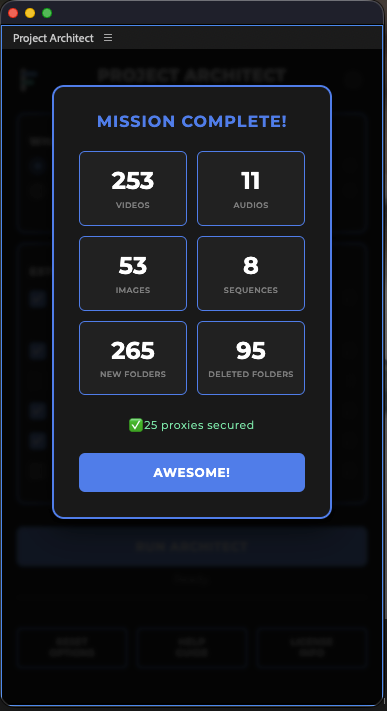
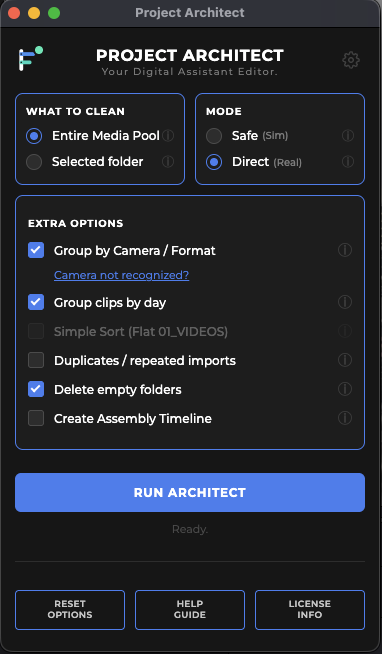
Before moving anything in Premiere, you can simulate. SAFE gives you a report of what Project Architect would do: folders created, clips routed, TO_CHECK cases… without changing the project.
- SAFE: simulation + report, bin untouched
- DIRECT: real run, fast, when the plan looks right
- Chain SAFE → read the report → DIRECT on the same scope
- Without premium options, simple sort still organises by media type only (see Simple sort)
You stay in control: understand first, then apply.
By brand, model, date
Same shoot day, two cameras: Nikon ZR and RED Komodo-X. Bins by date, then brand and model.
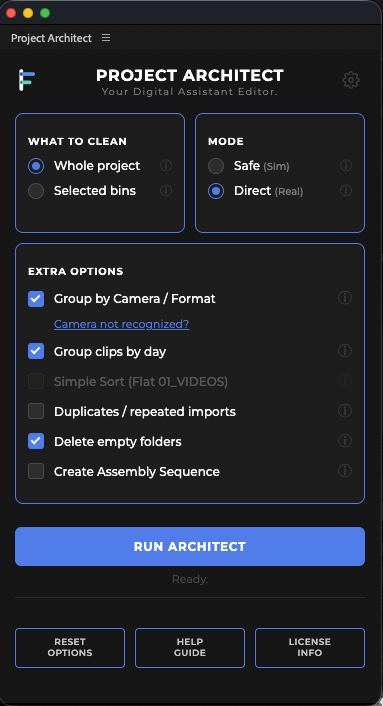
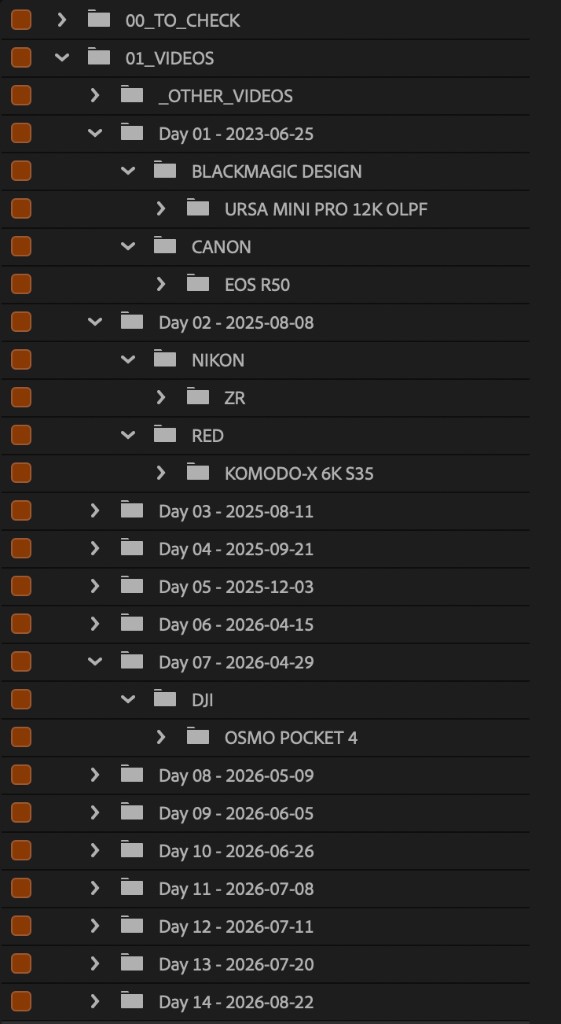
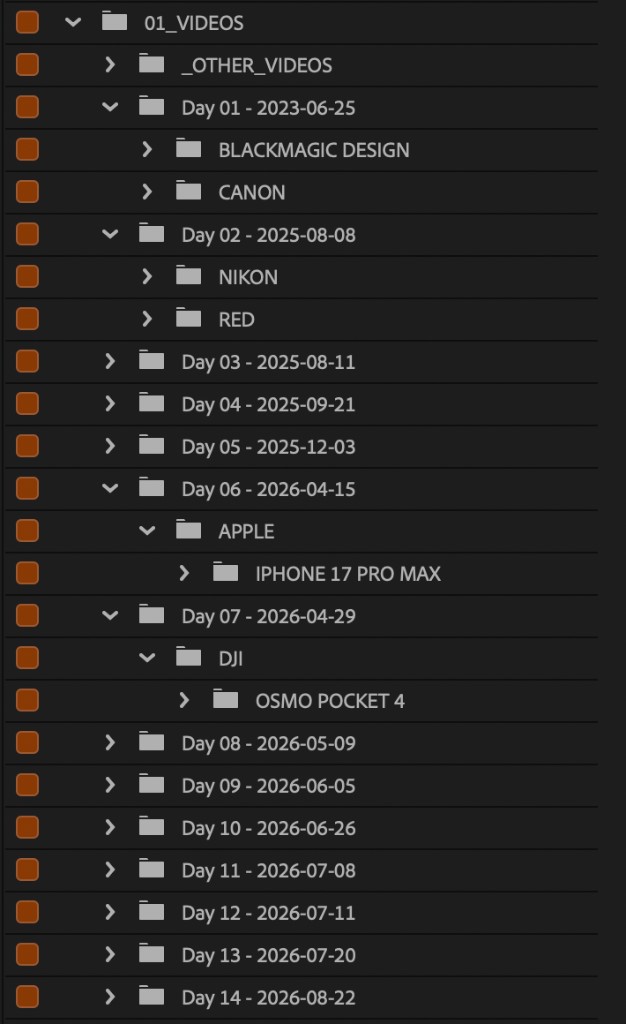
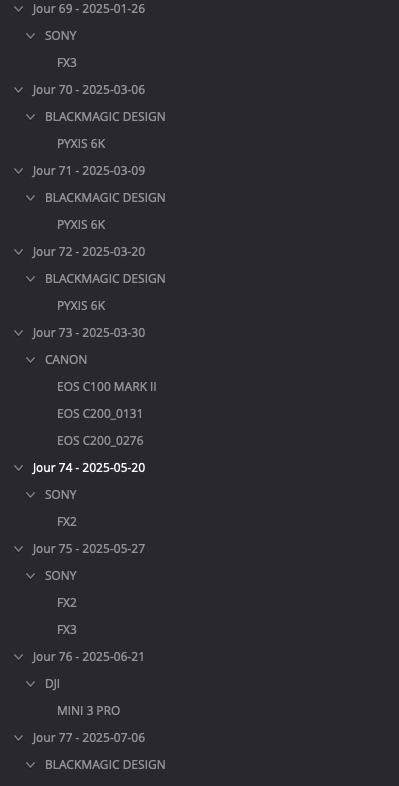
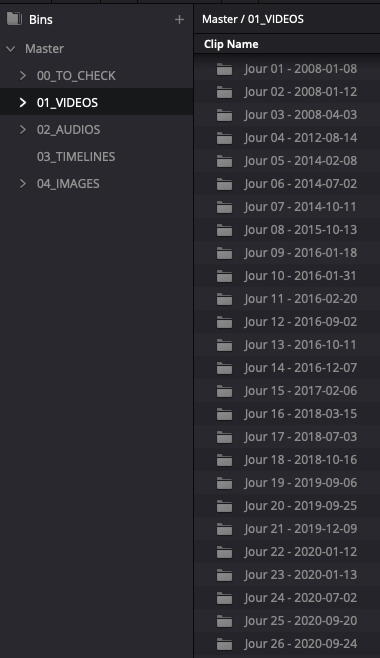
On a multi-cam or multi-day shoot, chaos starts at import. Project Architect files rushes by what you enable: brand, model, shoot date, or both.
- By camera / format: brand → model bins (Sony, DJI, Canon…)
- By shoot day: one bin per recording date, for video rushes only
- Combine both for multi-cam across several days
- Audio and images stay out of that date logic (often by format / type), so a 2016 track or a 2014 client logo will not invent fake shoot days
Example: Nikon ZR + RED Komodo-X on the same day → a readable tree before the first cut, without sorting clip by clip. Identical bodies of the same model on the same day are covered under Same day · identical bodies.
Same day · identical bodies
Not NLE multicamera on a timeline. When several bodies of the same model shoot the same day, Project Architect splits them by the last 4 characters of the serial number, when the camera writes that serial in the file metadata. One body only: a single model folder, no suffix.
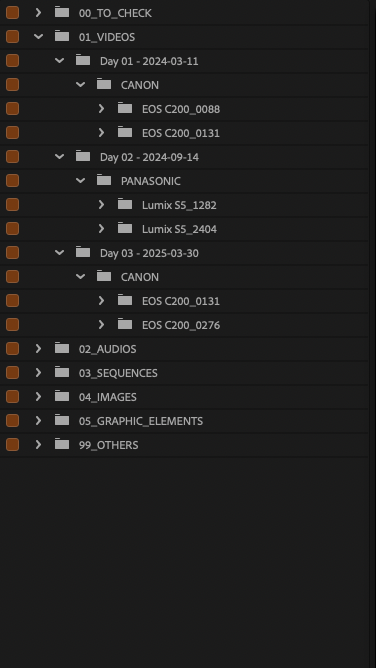
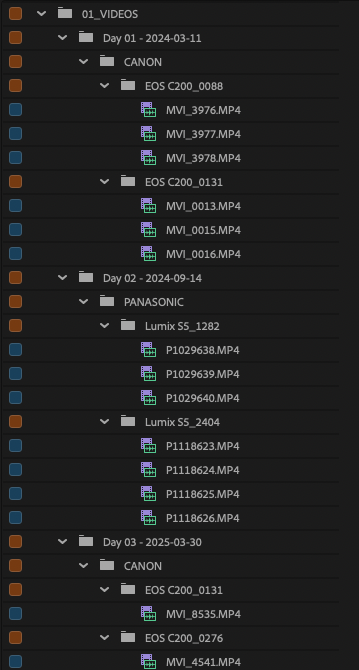
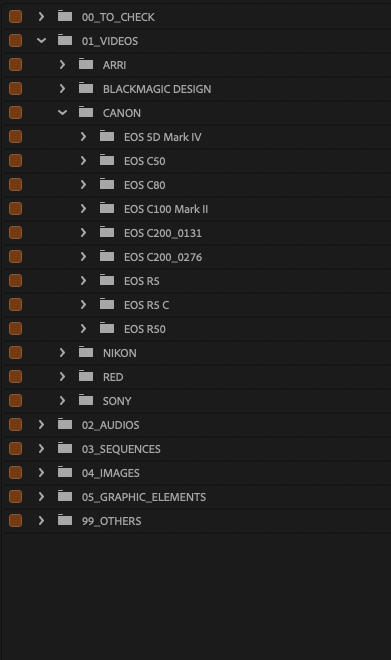
This is not NLE multicamera on a timeline (no A/B angles in Premiere or Resolve). It is project filing when several bodies of the same model record on the same shoot day.
- Requires camera grouping on, and a usable serial in the metadata
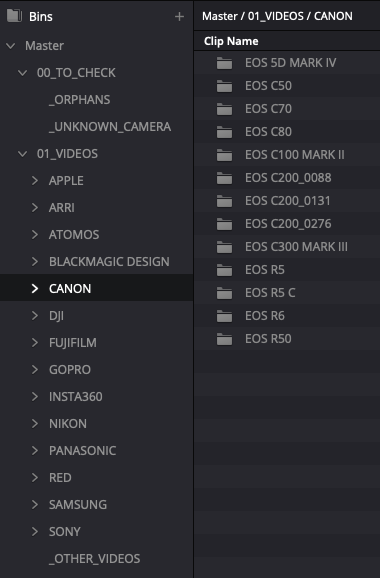
- At least two different serials for the same brand + model + day → folders like
EOS C200_0131andEOS C200_0276(last 4 characters) - Only one body in that group → a single model folder, no suffix (expected)
When the camera does not provide a serial, Project Architect cannot invent one. Clips stay under the model folder with no per-body split. That is a camera metadata limit, not a failed model recognition: the brand / model bin is still correct.
MOGRT / Motion Graphics
Templates go under 05 graphic elements - not camera masters, not 99_DIVERS.
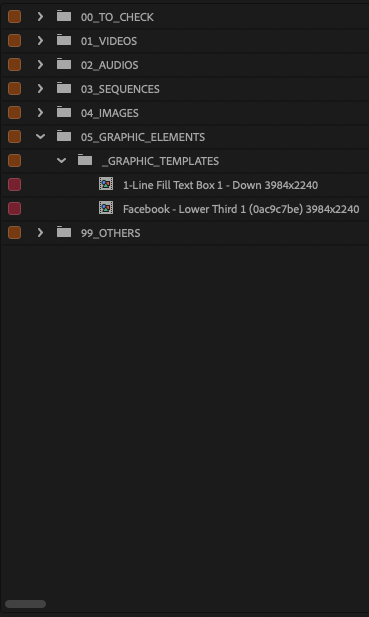
In Premiere Pro. MOGRT (Motion Graphics templates) go under 05 graphic elements (localized name, e.g. 05_GRAPHIC_ELEMENTS / 05_ELEMENTS_GRAPHIQUES), typically in the templates sub-bin (05_2_…).
- Not under camera masters
- Not in
99_OTHERS/99_DIVERS
The text titles sub-bin (05_1_… / _TEXT_TITLES) is for titles already in the Project panel on older Premiere Pro versions.
Adjustment layers and similar Premiere items that sit in the Project panel go to 99_….
_OTHER_VIDEOS - shoot masters vs delivered files
Real camera masters stay under brand / model (and day if the option is on). Exports and non-originals go to _OTHER_VIDEOS with no day folders, so they do not pollute the masters. Not the same as TO_CHECK.
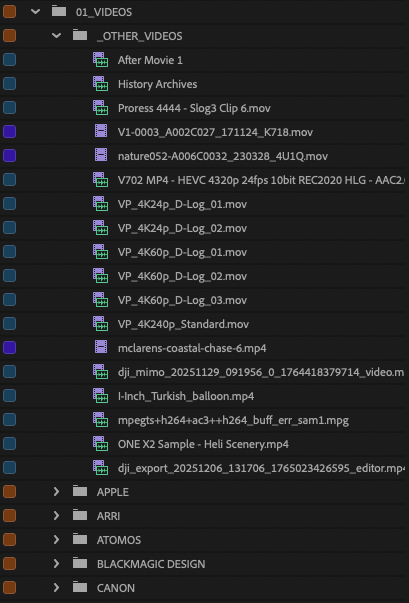
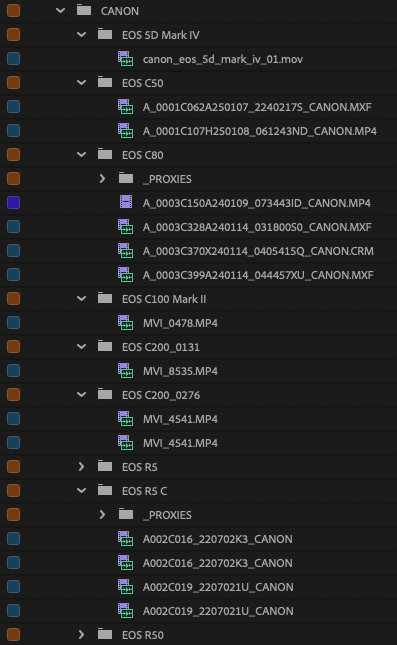
Project Architect separates two kinds of files and never invents a camera from the file name.
1. Real camera rush → brand / model tree (and day if the option is on)
This is the shoot master with Make and Model in the file metadata. Even if the file was opened or re-saved in Premiere or Resolve, Project Architect still treats it as an original when that identity is still present: it does not send it to _OTHER_VIDEOS for an NLE touch alone.
2. Export / delivered / no camera identity → _OTHER_VIDEOS
Timeline export, After Effects, Media Encoder, grading practice footage, download, or any video whose Make/Model was stripped by a transcoder: Project Architect does not guess Sony / Fujifilm / etc. from the title. It files it in _OTHER_VIDEOS.
_OTHER_VIDEOS is a flat bin: no day folders, so non-masters do not pollute the master shoot-day tree.
In one line. Metadata Make/Model → camera tree. No usable Make/Model → _OTHER_VIDEOS. The file name never invents a camera.
Example. A video file named Canon_EOS_C70_master.mov with no Make/Model in the tags → _OTHER_VIDEOS. A real C70 rush with Canon Make/Model → Canon tree.
Not the same as TO_CHECK. TO_CHECK = offline, orphans, technical anomalies (review zone). _OTHER_VIDEOS = honest home for non-masters and videos without camera tags.
TO_CHECK quarantine
Masters without camera identity, offline media, and orphans land in TO_CHECK. Exports go to _OTHER_VIDEOS. Decide with a clear list, not a hunt through the mess.
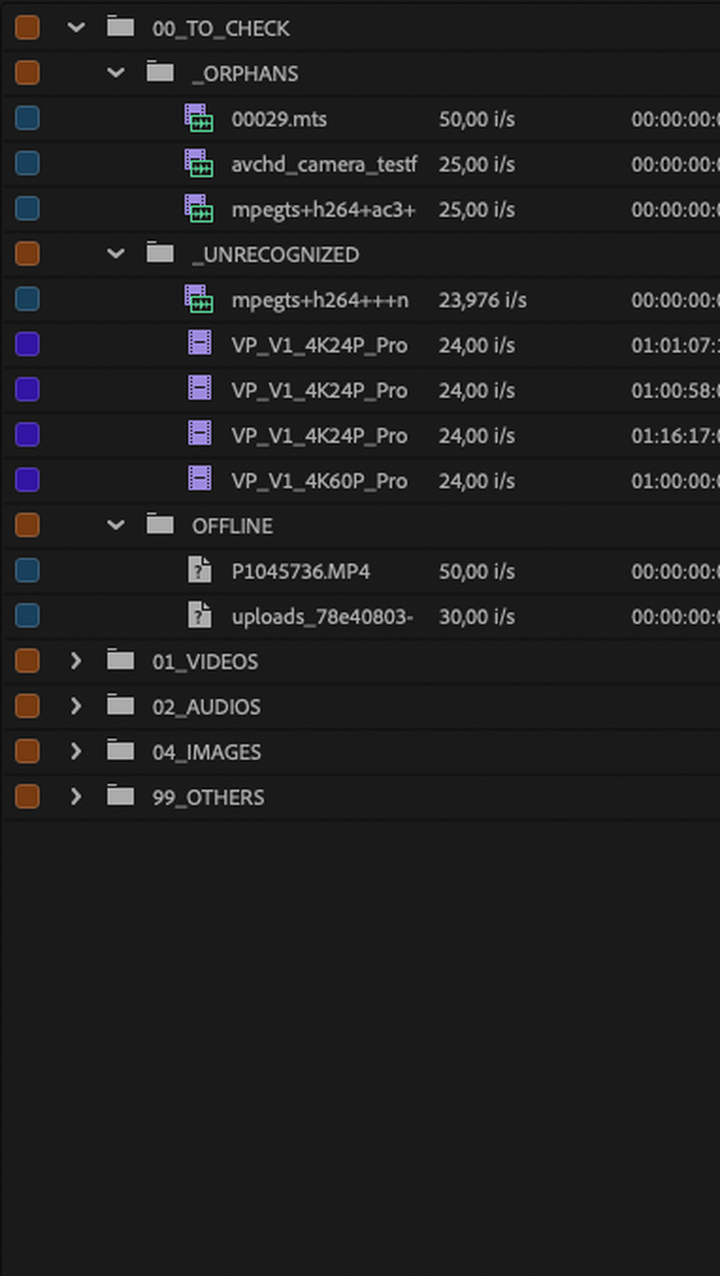
Not everything can be classified with certainty. Instead of leaving a doubtful clip among the rushes, Project Architect isolates it in TO_CHECK. You decide on a short list, not by hunting through the mess.
- Offline or missing media
- Technical edge cases (e.g. orphan proxy, orphan AVCHD)
- Open the bin, then refile, reconnect, or ignore
Missing Make/Model is not TO_CHECK: that goes to _OTHER_VIDEOS. If a camera is truly missing from the database (tags present but unknown model), use Camera not recognized?.
AVCHD
AVCHD / .mts is a card folder structure, not a lone MP4. Odd placement is often expected - not a crash.
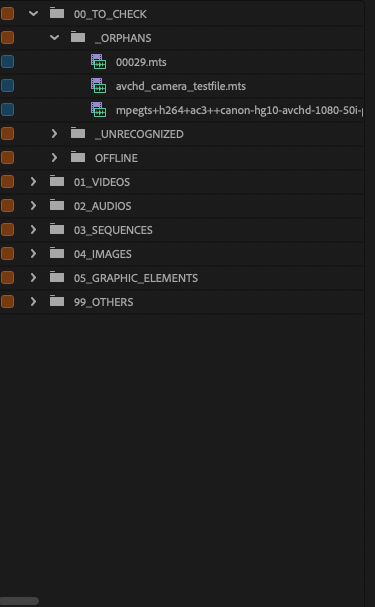
AVCHD / .mts is a card folder structure, not a lone MP4.
- Import the full card tree when you can
- Orphan
.mtsfiles ripped out of context may go to TO_CHECK / orphans - expected, not a crash
If placement looks odd, check TO_CHECK and the structure first.
Camera not recognized?
Send a short original rush (about 2-3 seconds) from the panel. After Focol validation, the model may reach later runs via OTA or a tool update.
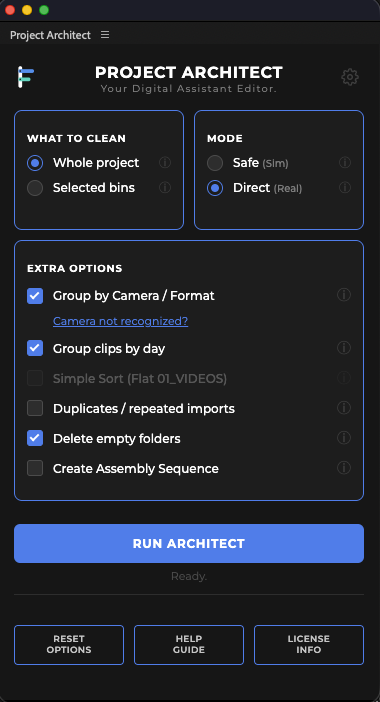
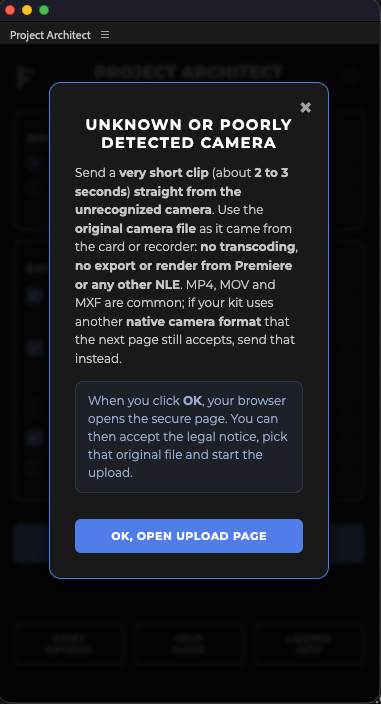
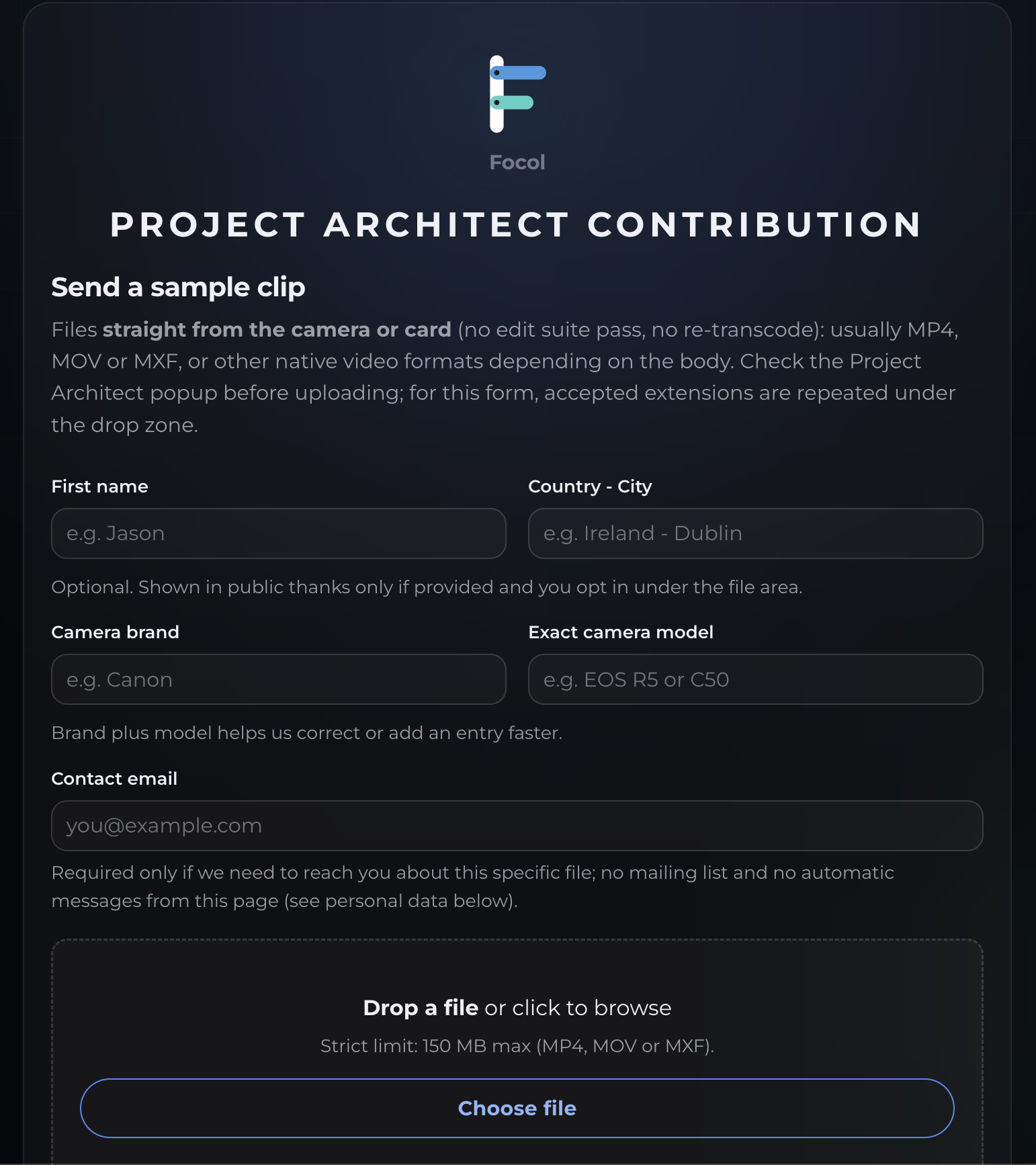
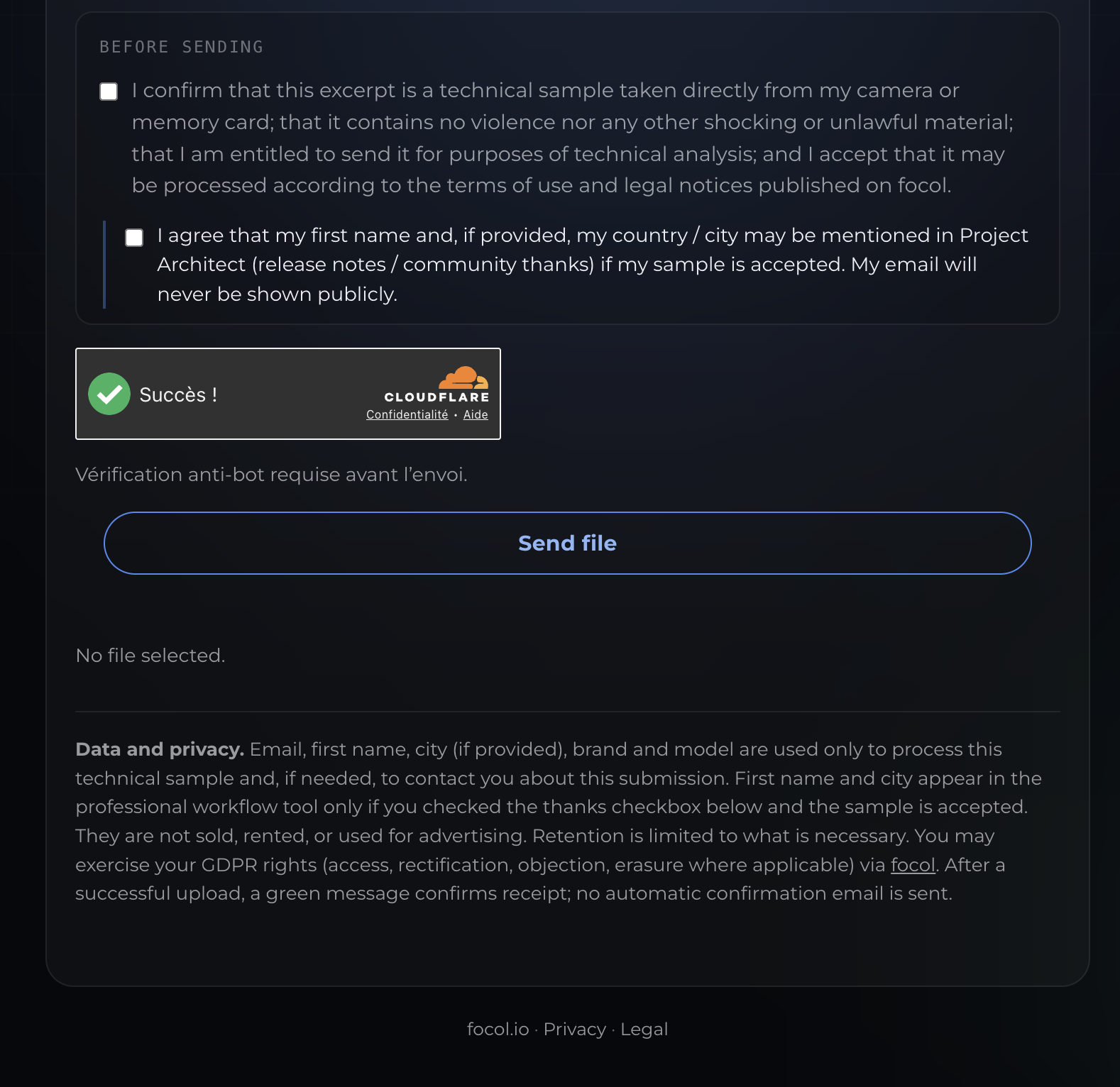
From the panel, under Group by Camera / Format, open Camera not recognized?.
- Send a very short original rush (about 2 to 3 seconds) straight from the unrecognized camera or card
- No transcode, export, or NLE render: MP4, MOV, MXF, or another native camera format the form accepts
- OK opens the secure page focol.io/contribute: legal notice, brand / model, file, send
- After Focol validation, the model may reach later runs via an OTA camera-database update when published, or in a tool update. Not guaranteed every time.
Camera database OTA
When possible, the camera database updates remotely. Not every time: if OTA cannot cover it, you reinstall the Suite.
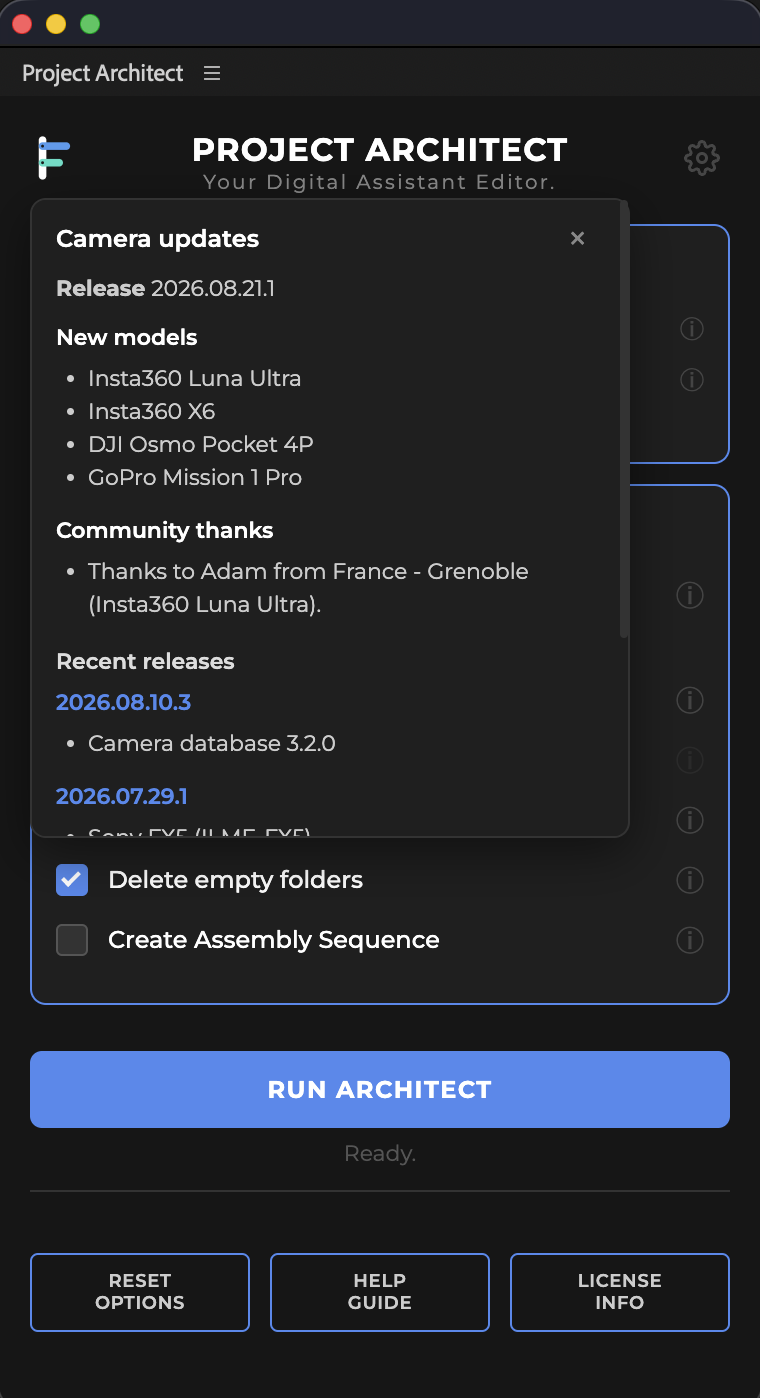
When possible, the camera recognition database may update remotely (OTA), without reinstalling. Not guaranteed on every machine or every release.
When OTA cannot cover it, you reinstall the Suite (or the Premiere-only ZXP from Adobe Exchange).
When Focol validates new models (or when you contribute via Camera not recognized? on focol.io/contribute), recognized cameras can reach later runs if an OTA is published for your build, or in a tool update.
Proxies, DNA-Check, multi-imports
Linked proxies stay next to their master; orphan proxies go to TO_CHECK. DNA-Check finds duplicates even if renamed. Multi-imports are isolated. Less manual chasing.
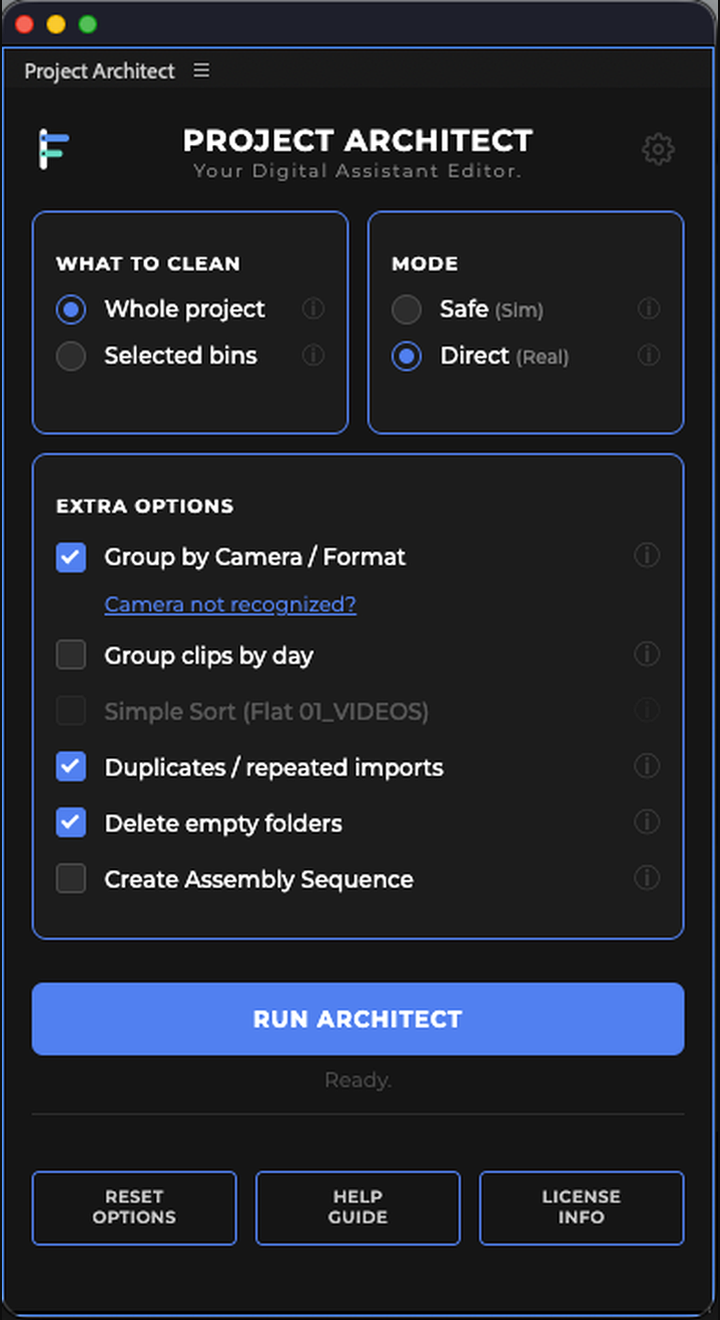
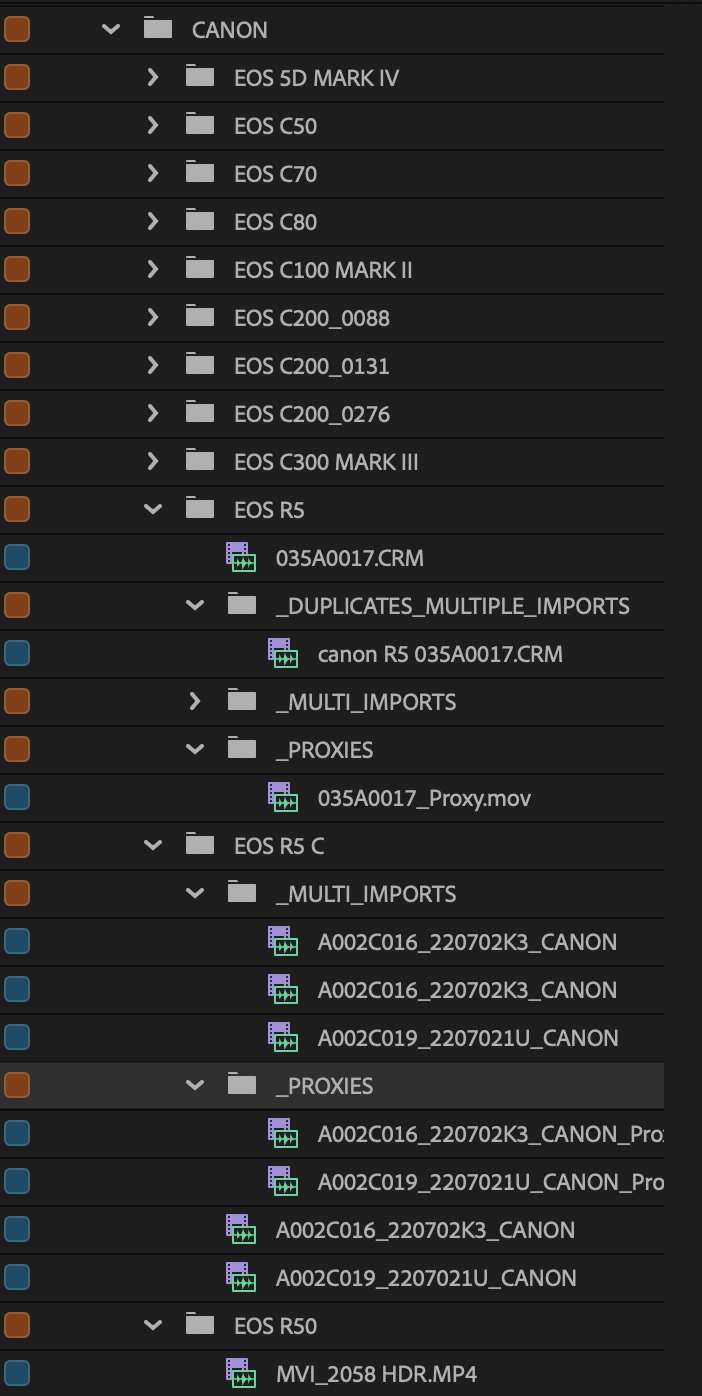
A proxy lost at the bottom of the bin, or the same file sitting three times under different situations: that slows you down before the first cut. Project Architect handles both.
- Proxies: linked proxies are filed next to their master (dedicated branch), so they stay usable. A proxy with no master in the project goes to TO_CHECK (orphans)
- DNA-Check (duplicates): same file via DNA hash, even if renamed; extras isolated next to the kept master
- Multi-imports: same file, same name, imported several times; extras isolated next to the kept master
- The kept clip follows your sort (camera / day…); extras no longer clutter the main tree
Less manual chasing: you cut, you do not inventory copies.
Assembly sequences
Create sequences that string clips from a bin end to end, so you start cutting faster.
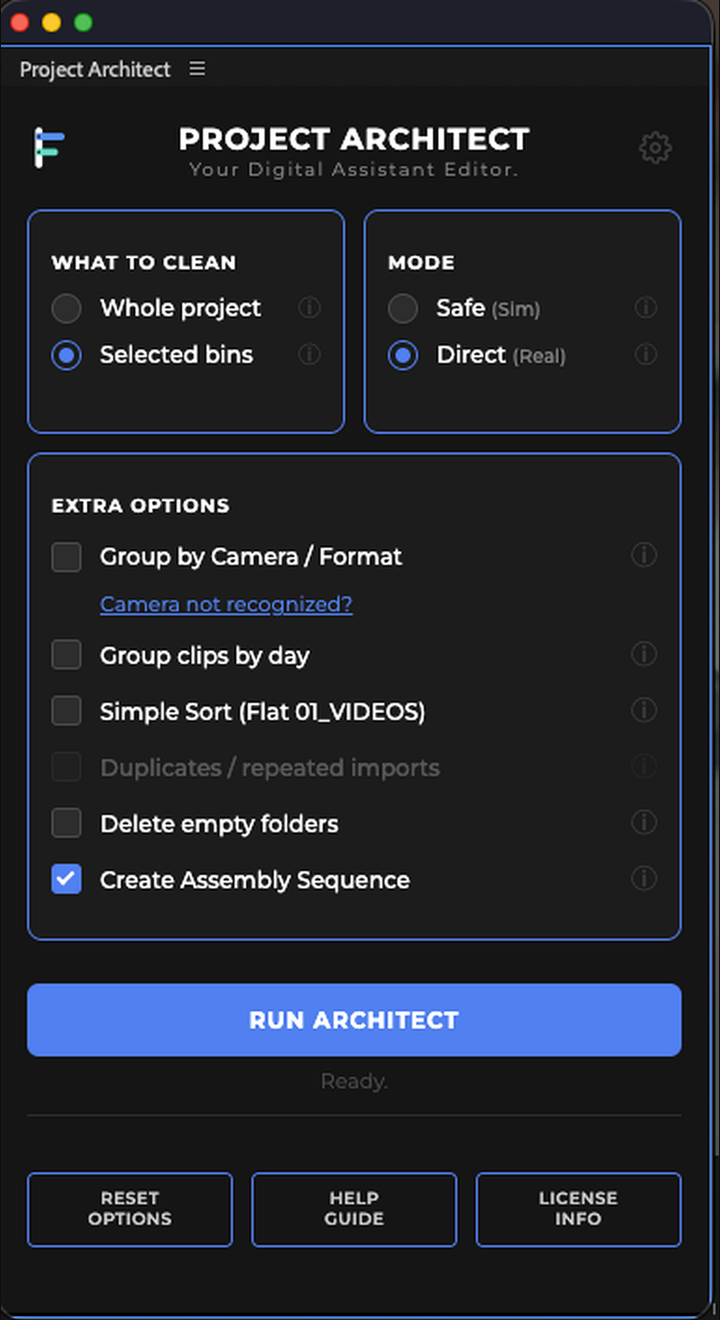
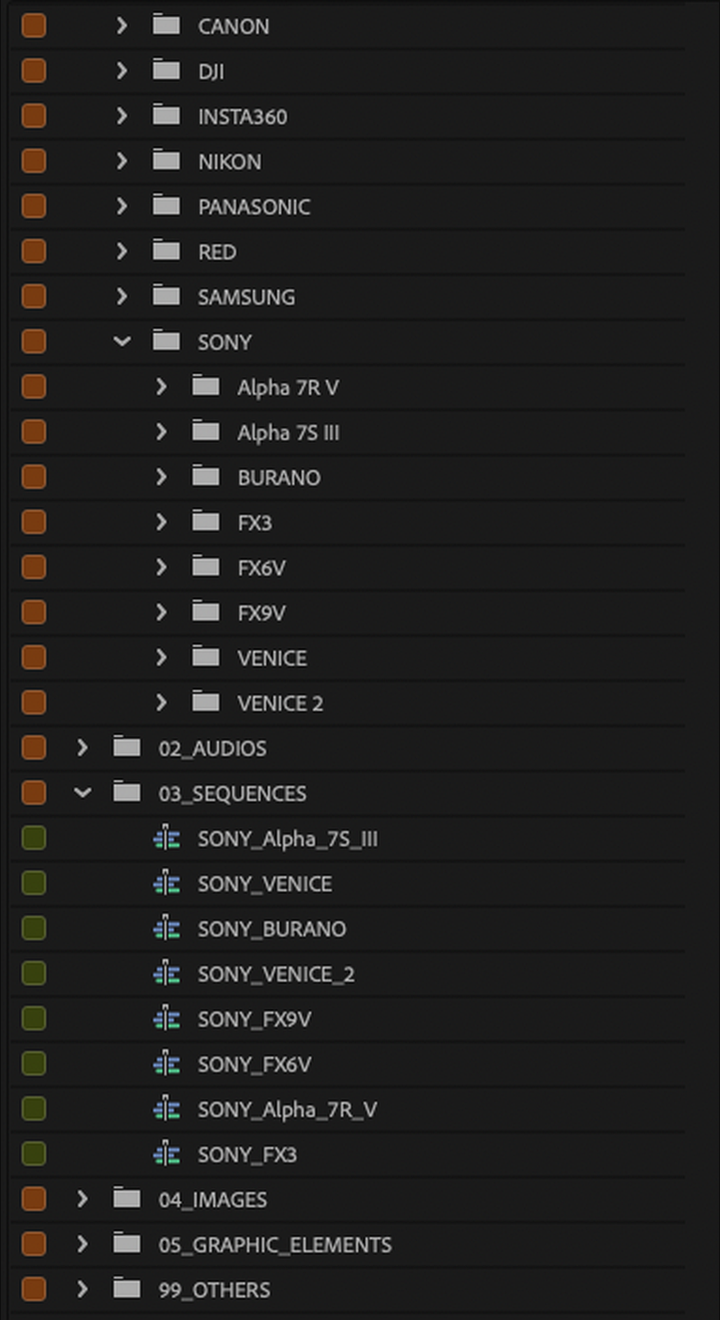
Once rushes are filed, you can string them out right away. In Premiere Pro for now, the option creates sequences that place a bin's clips end to end, so you start review or a first cut without manual drag-and-drop. Run it alone, or combine it with camera / day sort in the same run.
- Optional: alone, or together with camera / day sort
- One sequence per leaf bin processed (e.g. one day, one camera)
- Clips end to end, in Project panel order
- Sequences land in 03_SEQUENCES (customizable name)
- Not smart multicam sync: a string-out to get to first viewing / cut faster
Empty bins cleaned after the run
Optional cleanup: remove empty bins after organizing, so the project stays tidy.
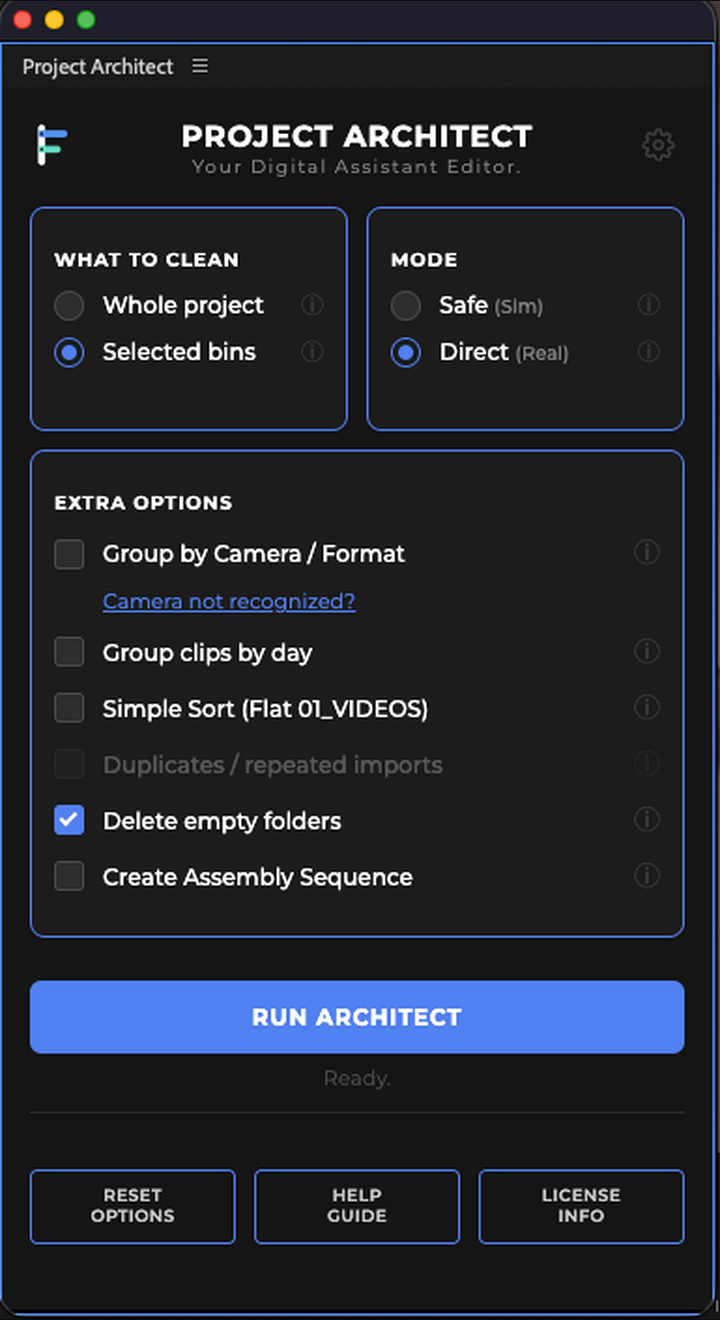
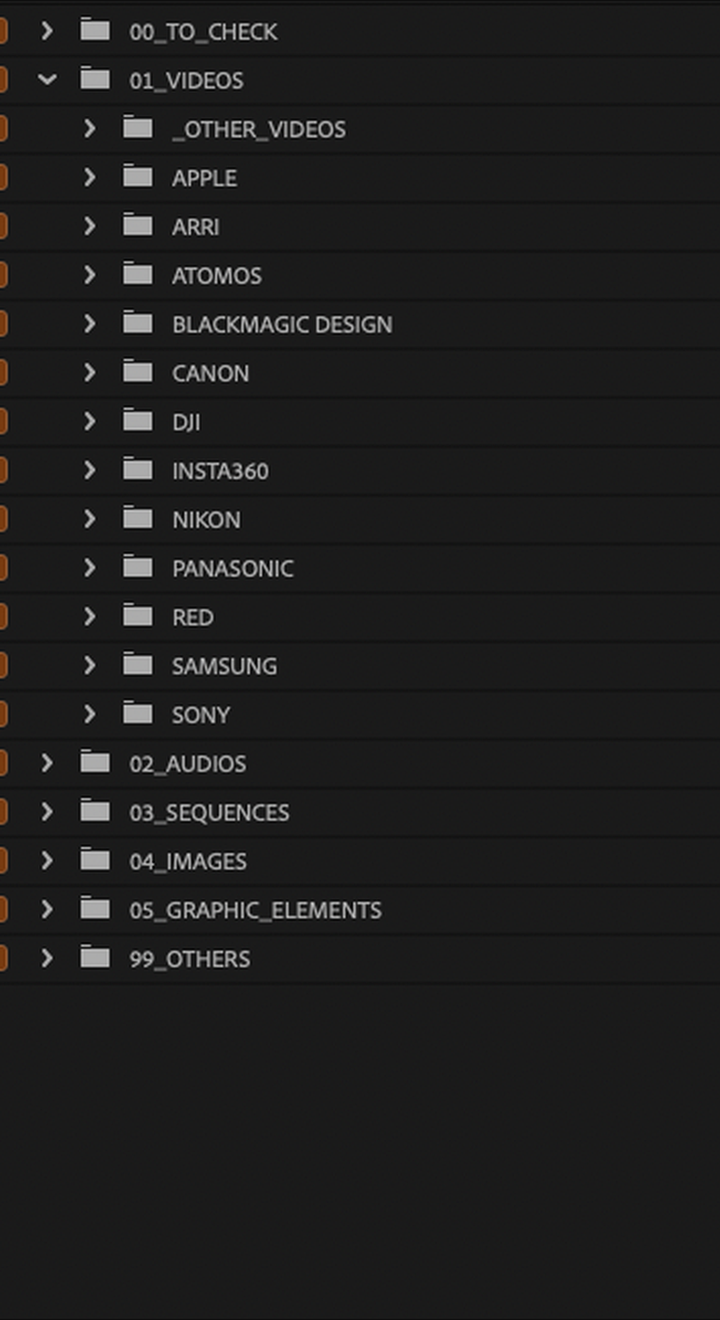
After a run, empty bins often linger where clips just left. Delete empty folders cleans them so the project stays readable. Never forced: you tick it only if you want. In SAFE you simulate; empty-bin cleanup is for a real run.
- Optional: alone, or combined with camera / brand / day sort
- Runs after organizing, on bins that became empty
- Outside SAFE: useful in DIRECT, when moves actually happen
- A cleaner bin, without empty shells to ignore
UI in 12 languages
The organization problem is the same in Paris, New York, Tokyo, Berlin, Seoul, Dubai, Madrid, Rome, or Moscow. Interface fully translated into 12 languages: English, French, Spanish, German, Italian, Portuguese, Russian, Chinese, Japanese, Korean, Hindi, and Arabic.
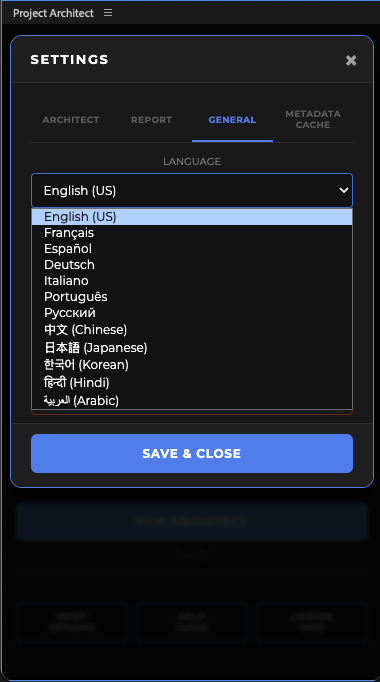
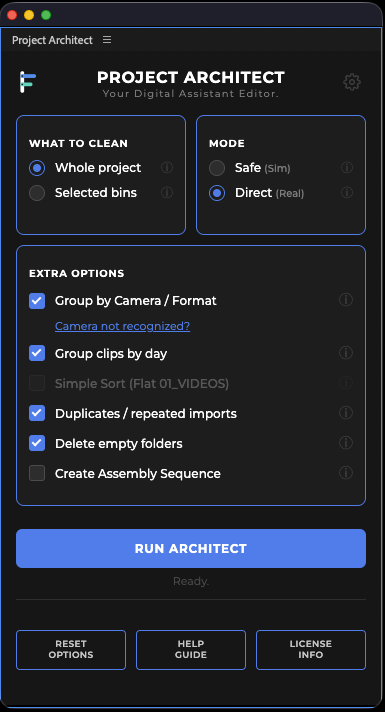
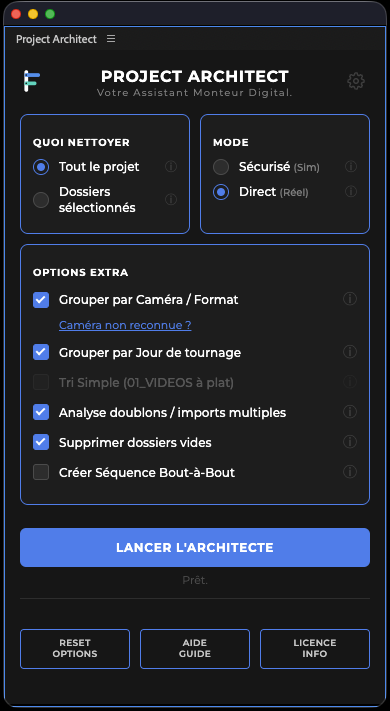
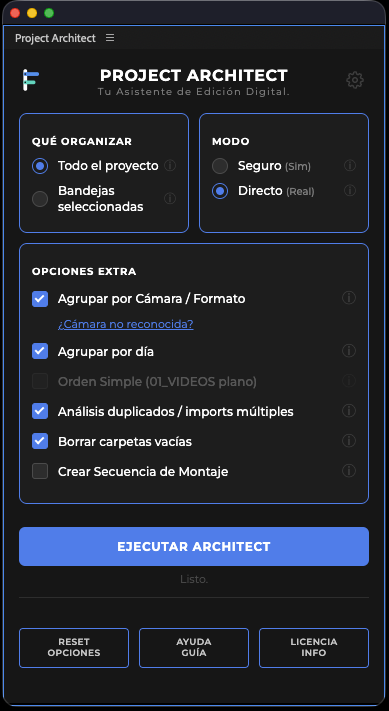
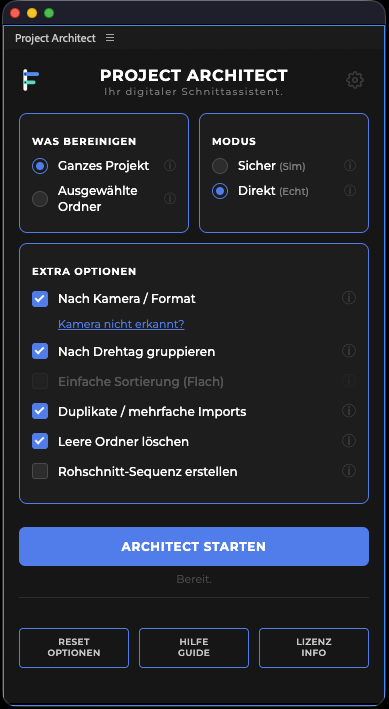
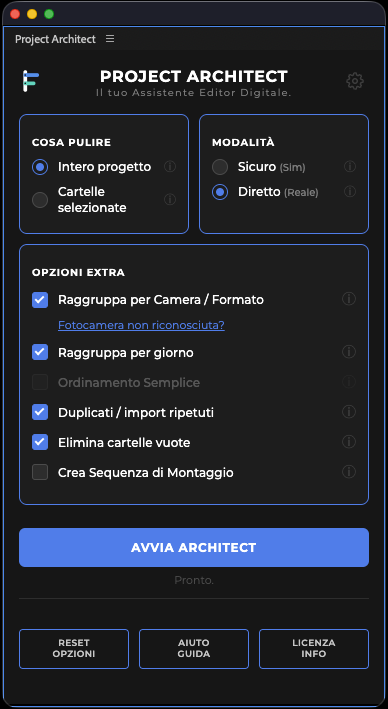
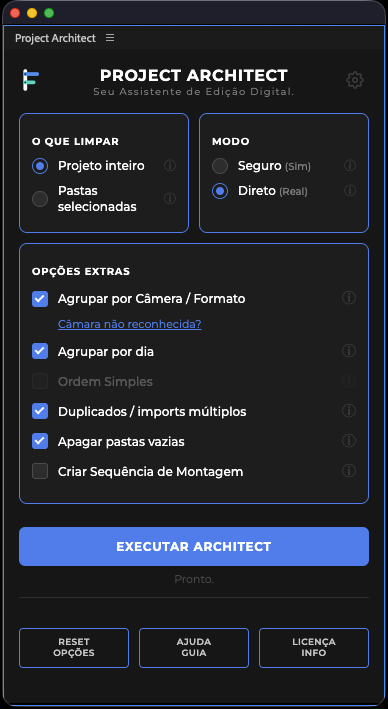
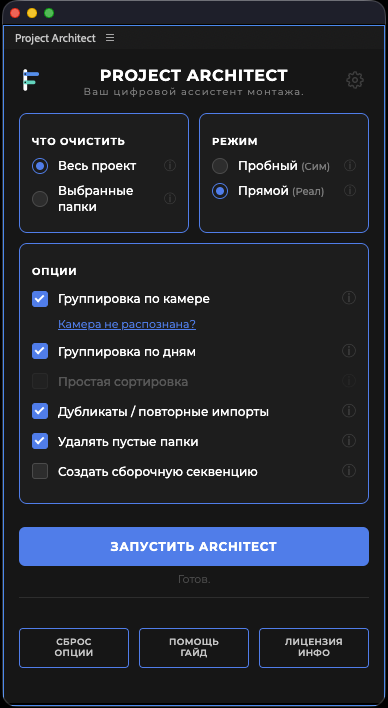
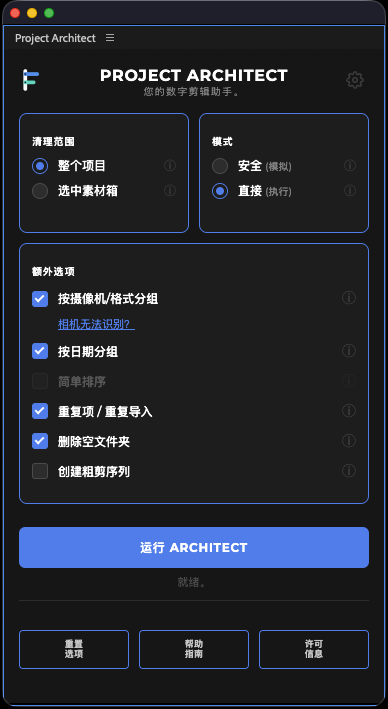
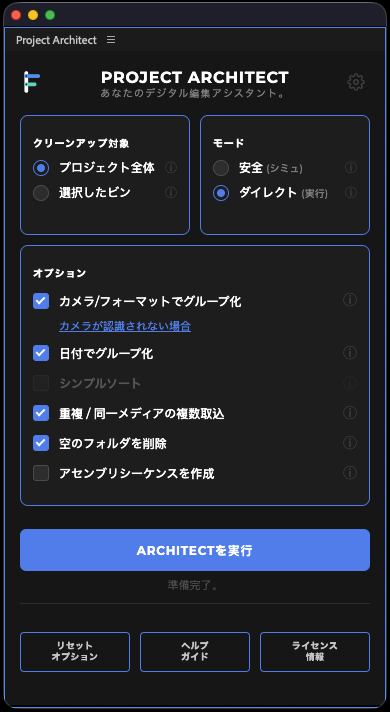
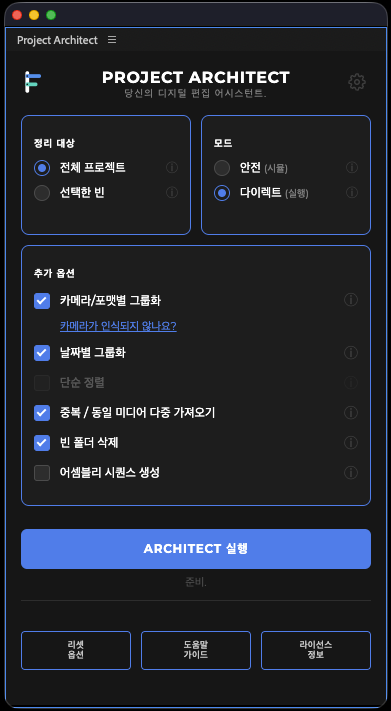
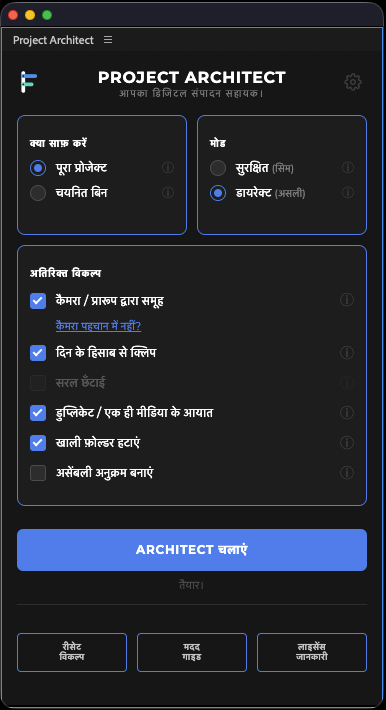
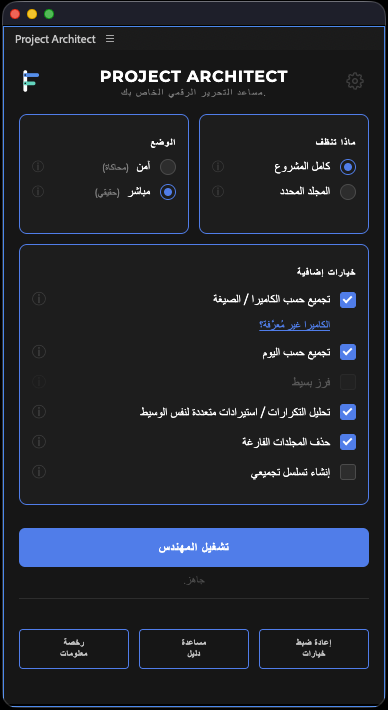
The organization problem is the same in Paris, New York, Tokyo, Berlin, Seoul, Dubai, Madrid, Rome, or Moscow. The interface is fully translated into 12 languages, and reports / logs follow the same language.
- English, French, Spanish, German, Italian, Portuguese, Russian, Chinese, Japanese, Korean, Hindi, Arabic
- Same workflow, local language
- Simple report, detailed report, and session log in the language you choose
- Useful for mixed crews: everyone reads Project Architect and the run trace in their language
Names and order that match your habits
Need 01_RUSHS instead of 01_VIDEOS? Or audio before videos? Rename your bins, drag families into the order you want, save your presets, and reuse them from one project to the next.
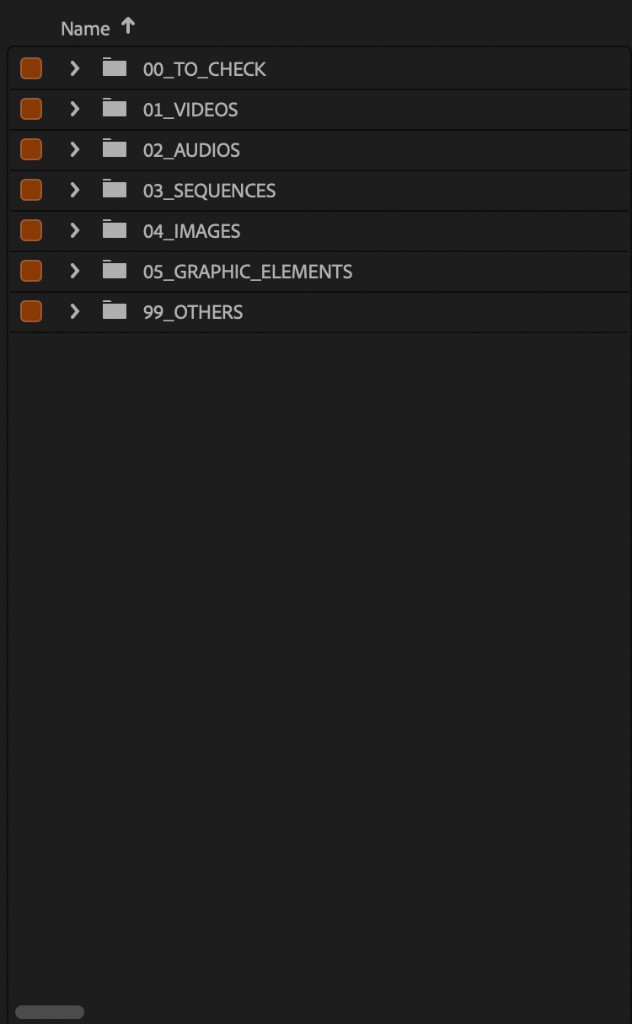
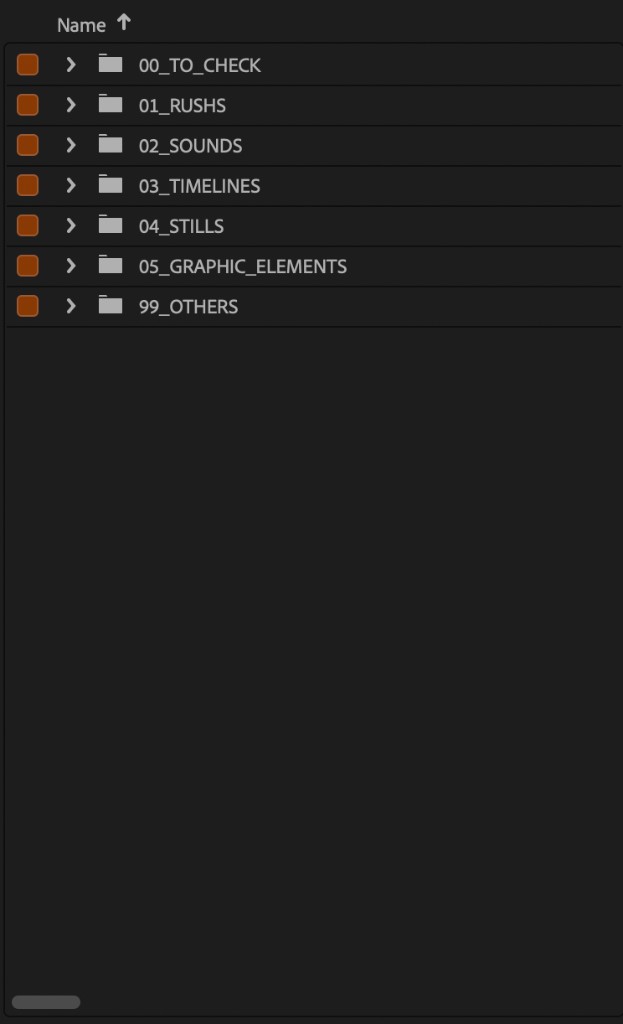
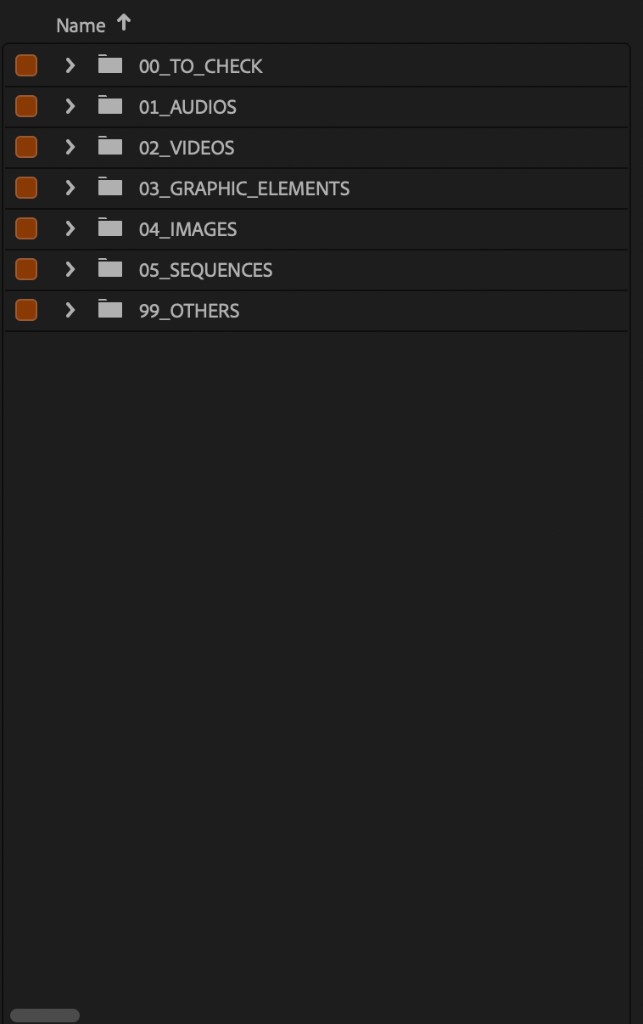
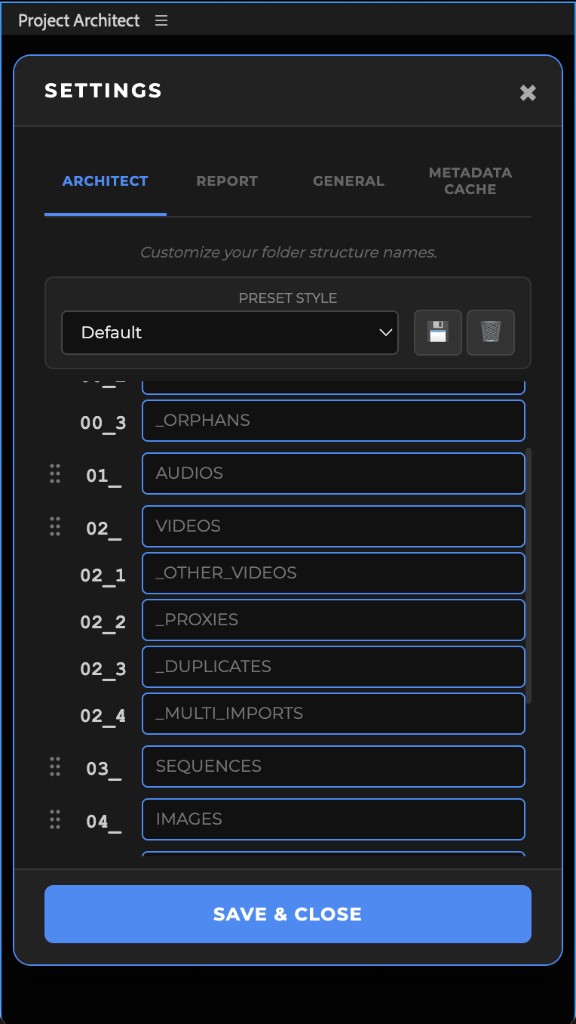
Need 01_RUSHS instead of 01_VIDEOS? 02_MUSIC rather than 02_AUDIOS? Or audio before videos? Project Architect adapts to editors' habits and workflows, not the other way around.
- Custom names across the whole tree (video, audio, images, sequences, graphics, misc, quarantine…)
- Examples:
01_RUSHS,02_MUSIC,03_TIMELINES,04_STILLS… - Drag a family to change the order: audio before videos, sequences first… Prefixes
01_,02_update on their own; children stay with the family 00_TO_CHECKand99_OTHERSstay put: they bracket the tree. You only reorder what sits between them- Presets save names and order, reusable from one project to the next. Restore defaults in one click
- Project Architect keeps routing correctly: only the labels and the root-bin order change, not the logic
You keep your team's naming and order; Project Architect aligns with it.
I absolutely LOVE that you allow users to change the names of folders. If you didn't, that would be the first feature request.
Simple and detailed reports
After every run: a simple or detailed report, plus the log. Precise traceability for you, your client, or an internal audit.
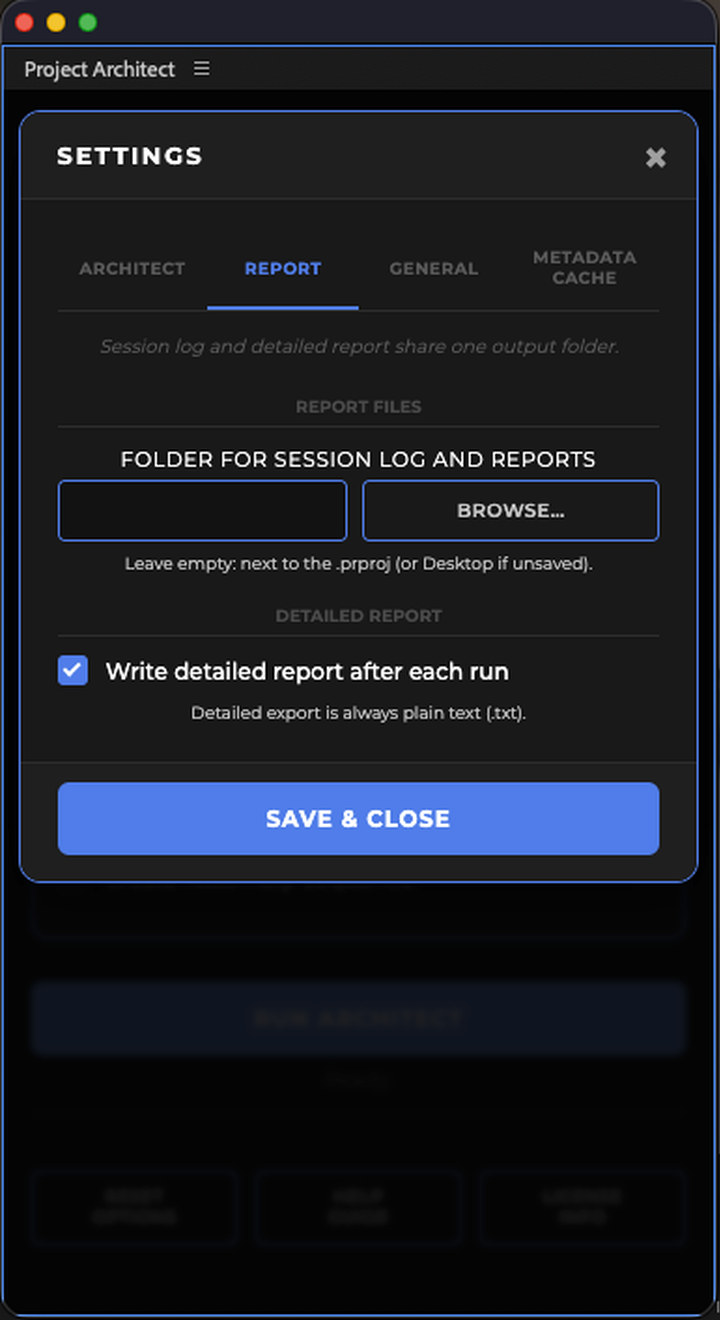
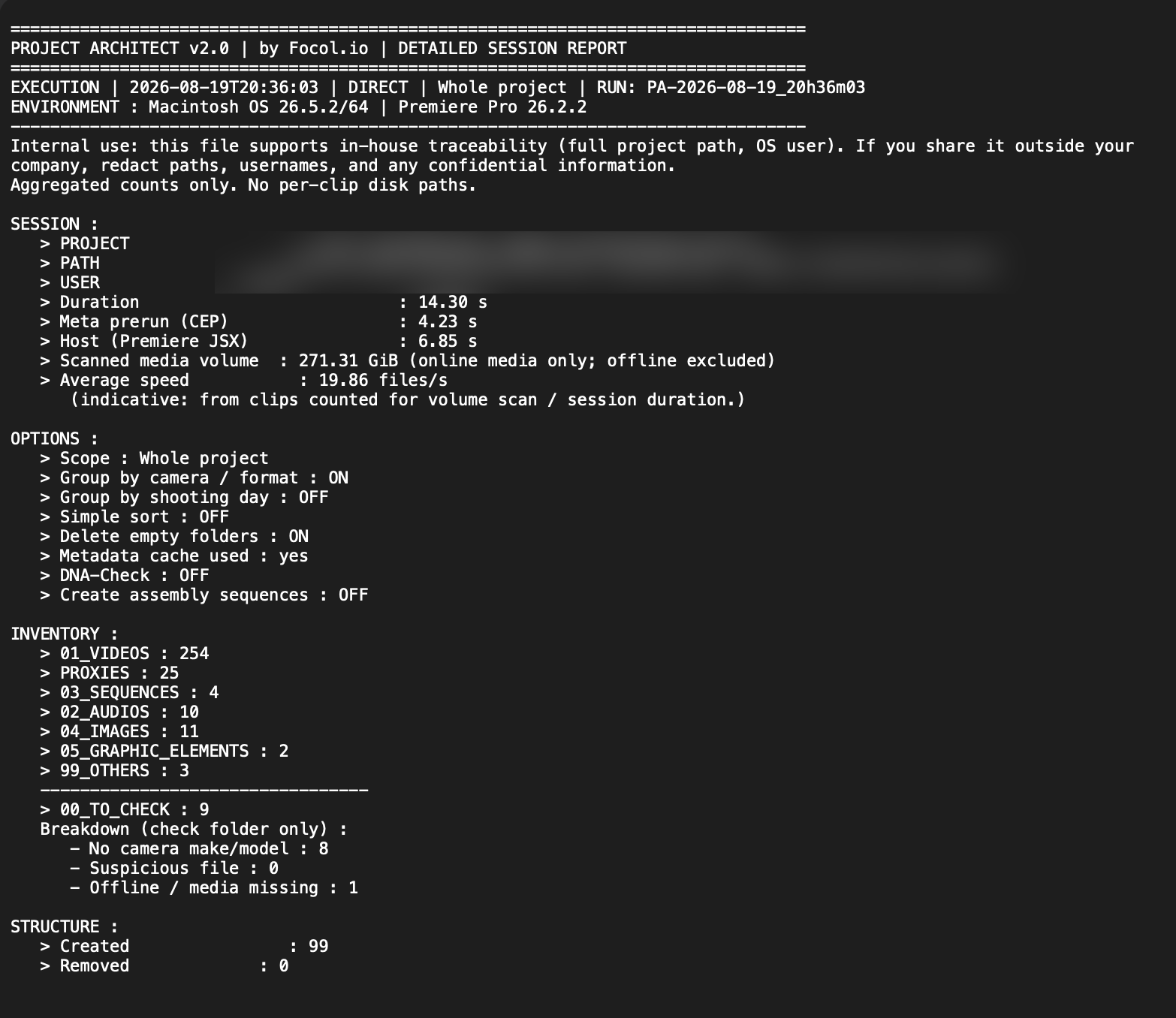
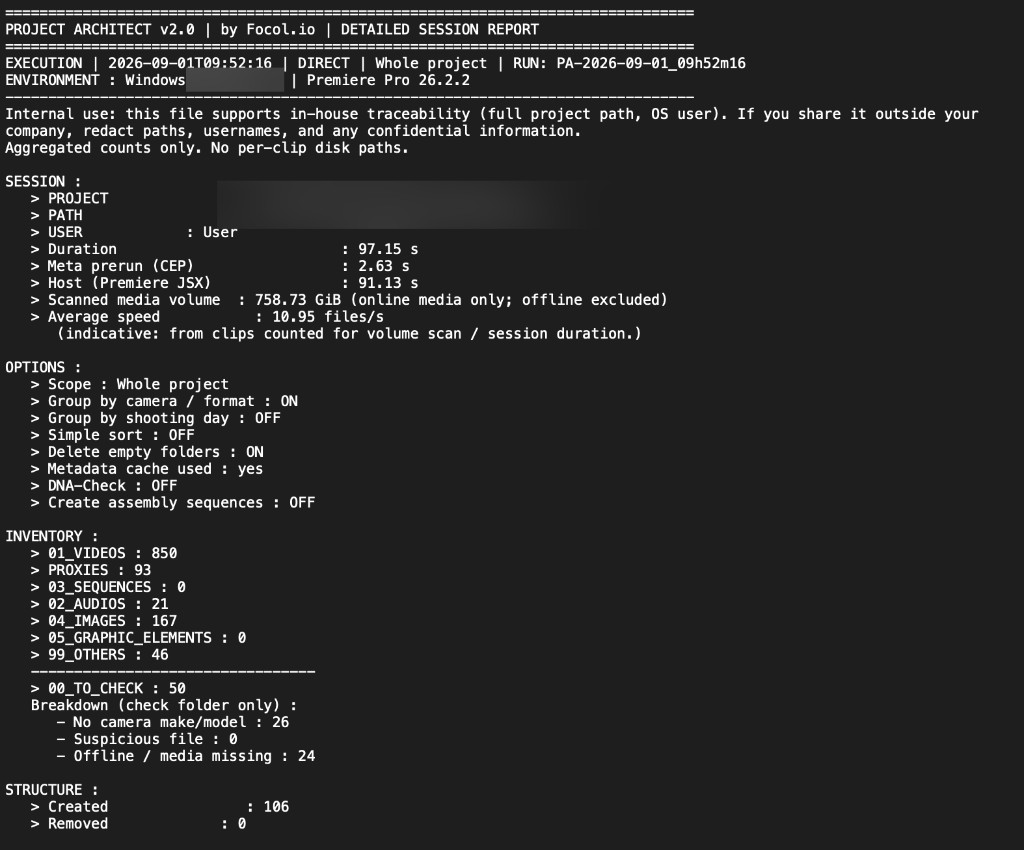
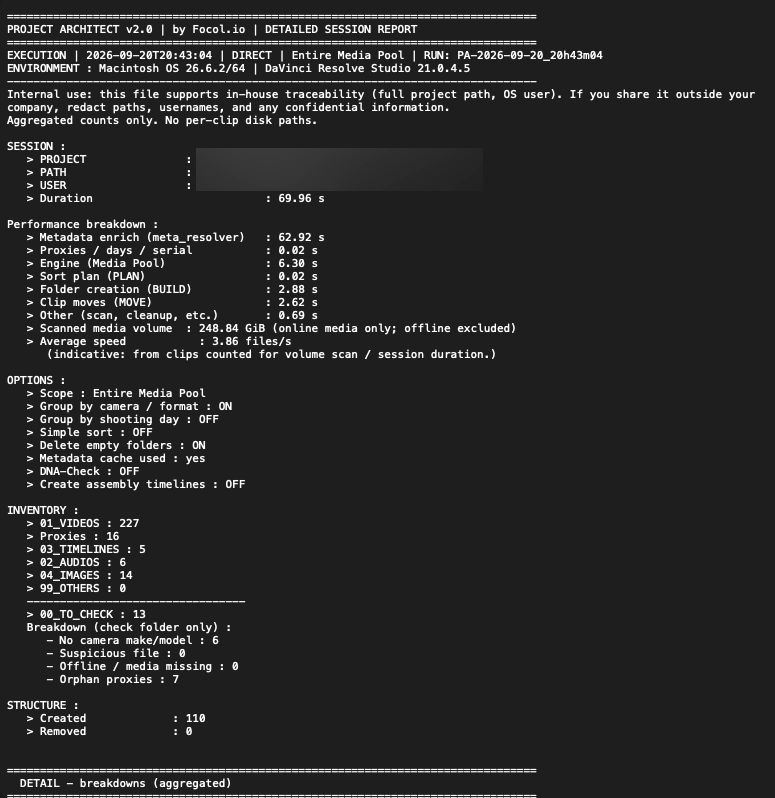
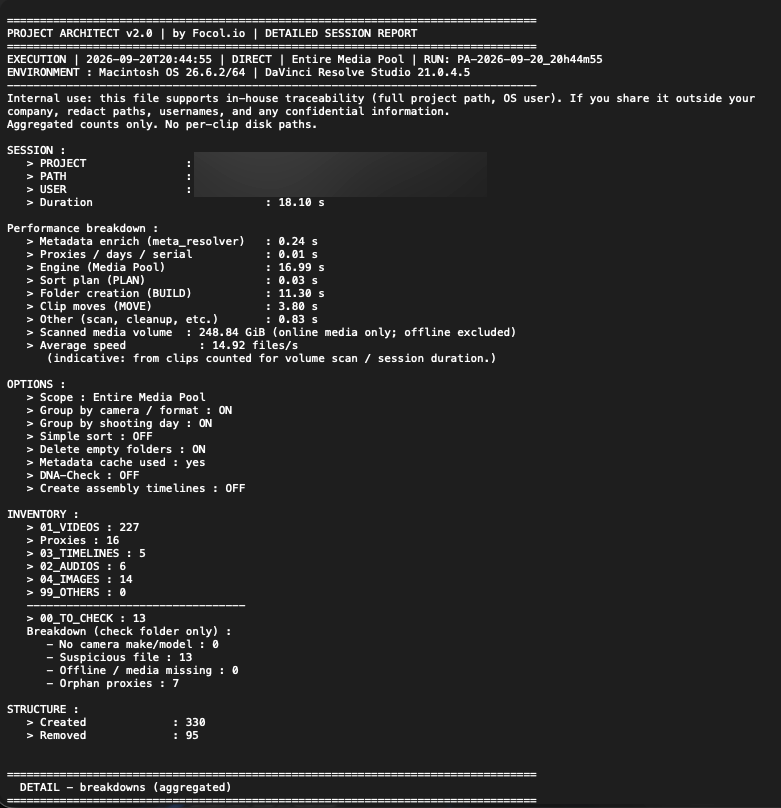
After every run, Project Architect leaves a clear trail. The simple report summarizes what matters for you, your team, your client, or an internal audit. The detailed report goes further. The session log completes the record.
What the simple report documents in particular:
- Project Architect version, date / time, mode (SAFE or DIRECT), run ID
- Environment: OS, Premiere Pro version
- Project, user, run duration, scanned volume, average speed
- Active options (scope, camera, day, DNA, empty folders, sequences…)
- Inventory (video, proxies, audio, images, TO_CHECK, DNA…)
- Structure: folders created / cleaned
Output folder configurable in settings. Traceability for pro pipelines and multi-editor shops: fewer “who touched the project?” moments, more facts.
When sharing externally, redact paths and usernames (the report itself reminds you).
Memory and metadata cache: the next run is faster
Two local memories, two jobs. The metadata cache skips rescanning files already read: on a re-run, only new files (or files that truly changed) are recalculated. Sort memory keeps the bin structure for turbo runs. Cache size: 100 MB, 250 MB, 500 MB, or unlimited. Purge and clear in settings.
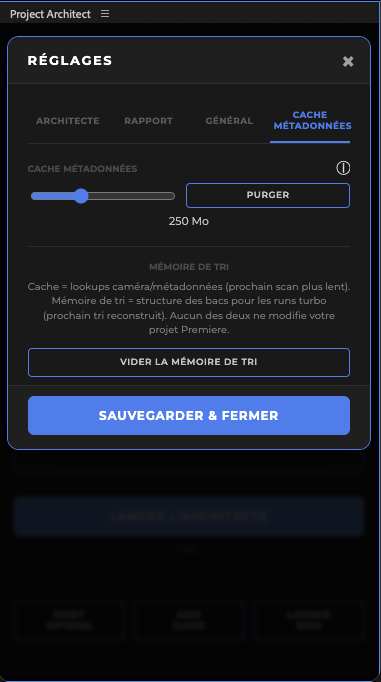
Project Architect keeps two local memories on your machine. Not the cloud. Neither moves or renames rushes on disk, and neither changes your Premiere Pro or DaVinci Resolve project.
1. Metadata cache
Camera / metadata lookups already analyzed. Run 1: discovery and memorization. Re-run: known files come from the cache; only new ones (or files that truly changed) are recalculated. That is why speed holds when you add a batch. Size: 100 MB, 250 MB, 500 MB, or unlimited. Purge: the next scan starts heavier again.
2. Sort memory
Bin structure for turbo runs (what goes where). It speeds up the next sort. Clear sort memory: the next sort rebuilds that structure.
Both live under Settings → Metadata cache.
Pro trial
7-day Pro trial on first use: premium options unlocked so you can test everything.
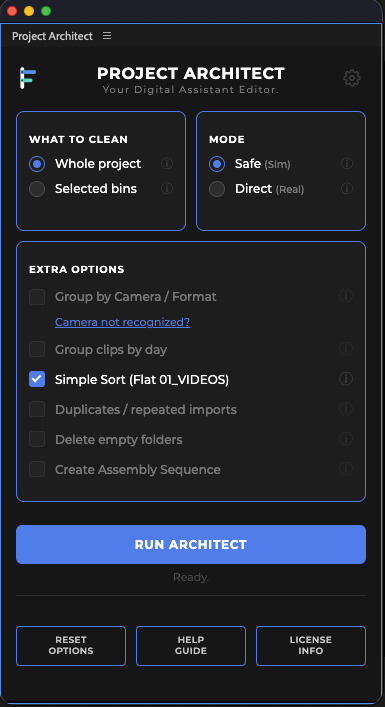
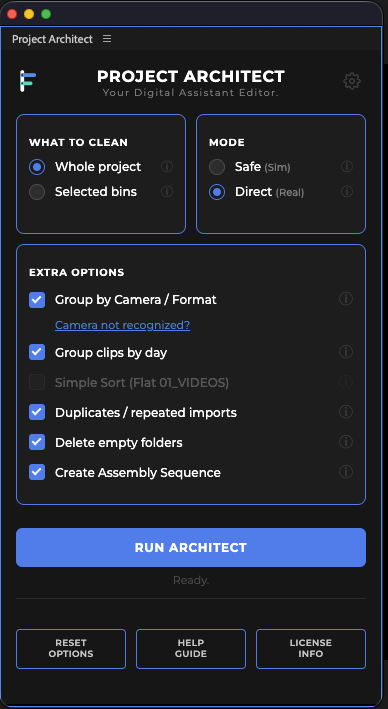
You can try everything. On first use, a 7-calendar-day Pro trial typically starts and unlocks premium options (camera / day, DNA-Check, assembly sequences, empty bins, and more).
- Same Pro feature set during the trial
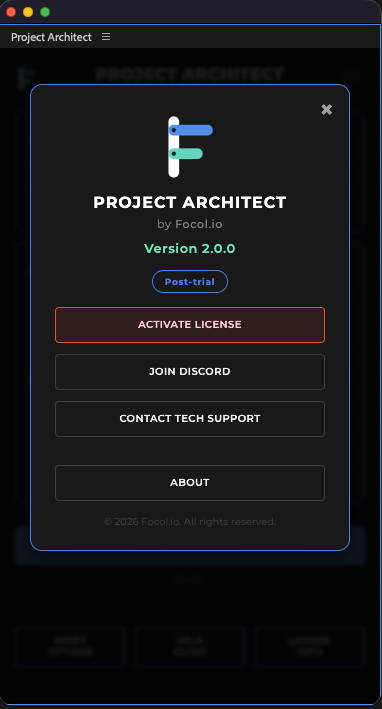
- Open LICENSE / INFO anytime to see status or activate a key
- Internet may be needed for trial verification
When the trial ends without a key, you keep SAFE and DIRECT on simple sort only - see the Simple sort section.
Pro license
Activate your key in the Premiere panel. One seat, seat transfer, offline window.
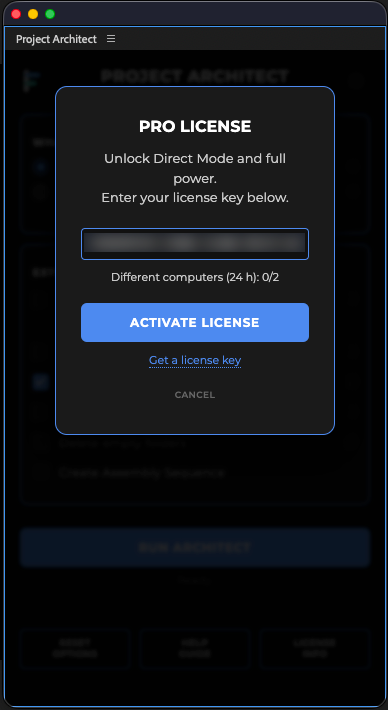
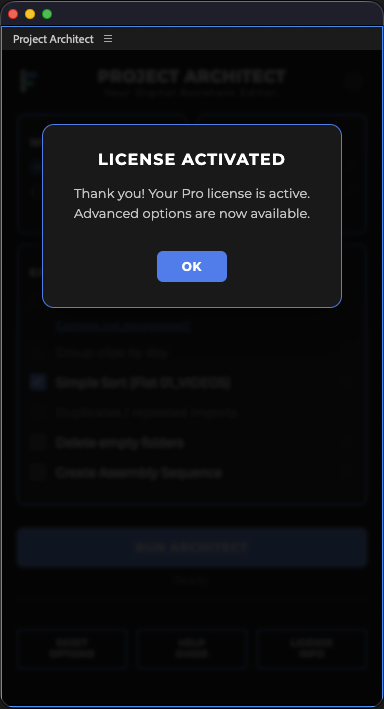
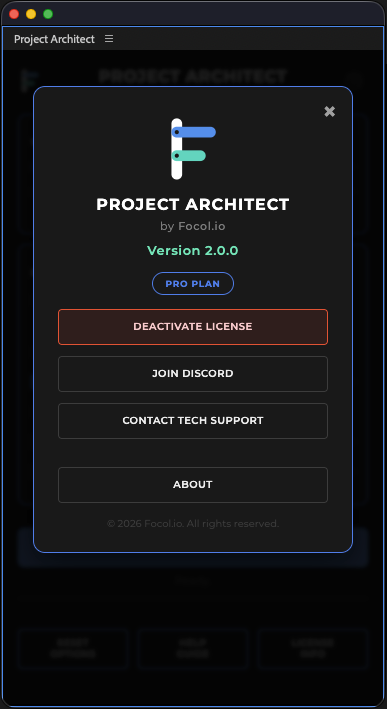
Activate a key in the panel when you have one (beta: trial first).
- Activation: LICENSE / INFO, paste the key, activate (Internet required)
- After success, the badge shows PRO PLAN (or the equivalent in your UI language)
- 1 seat: same editor, 1 active machine at a time (desktop + laptop). Activating elsewhere transfers the seat - that is not a ban
- Active Pro needs periodic network validation (about 30 days offline, plus a short grace)
- Quota: 2 different machines / 24 h (round trips between those two are free)
- Open beta: not for sale yet. Seat management: license portal. Studios (2+ seats) coming later
Studio autonomy
Manage seats on the web: release, regenerate, activity, CSV. No support ticket for day-to-day seat management.
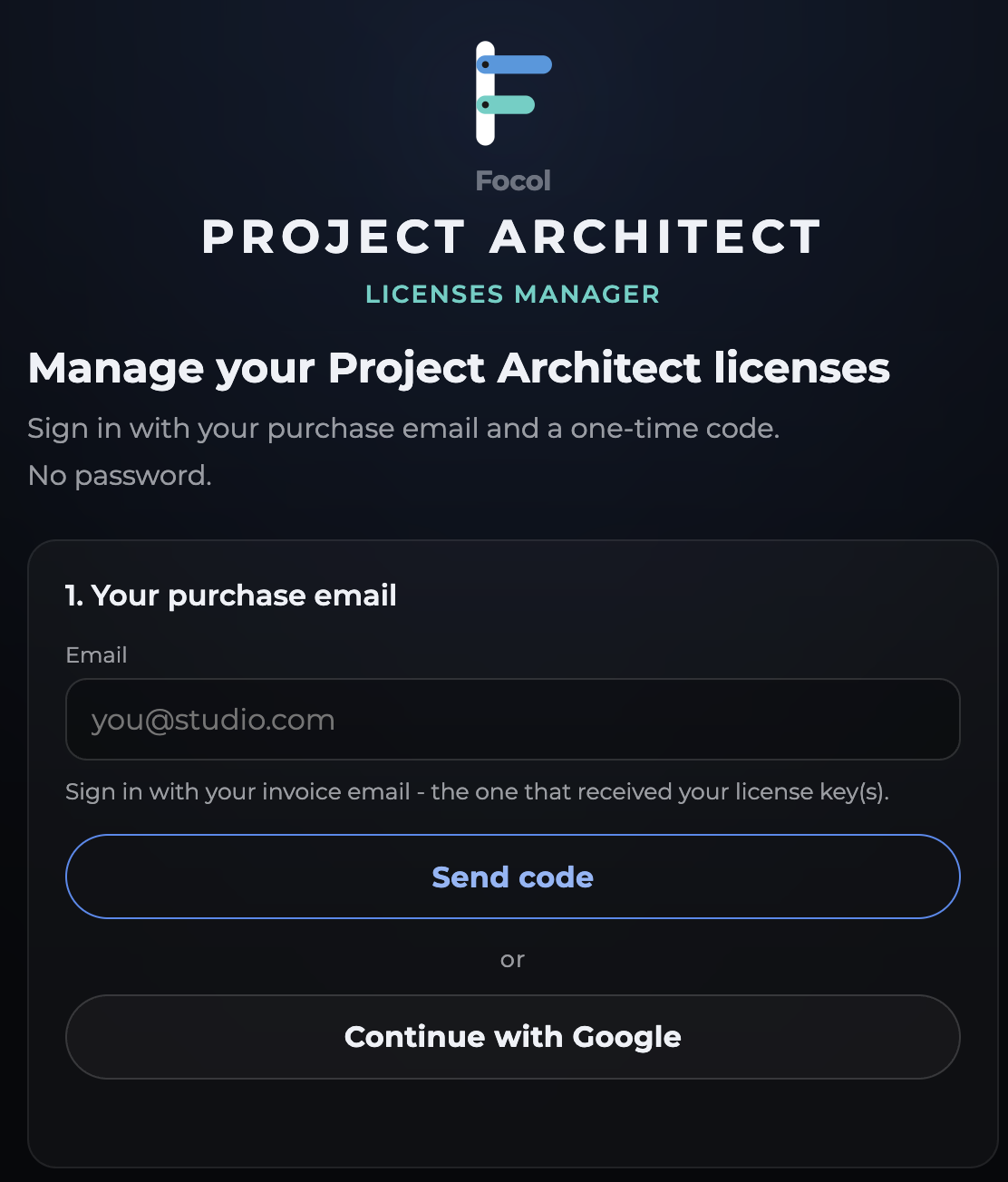
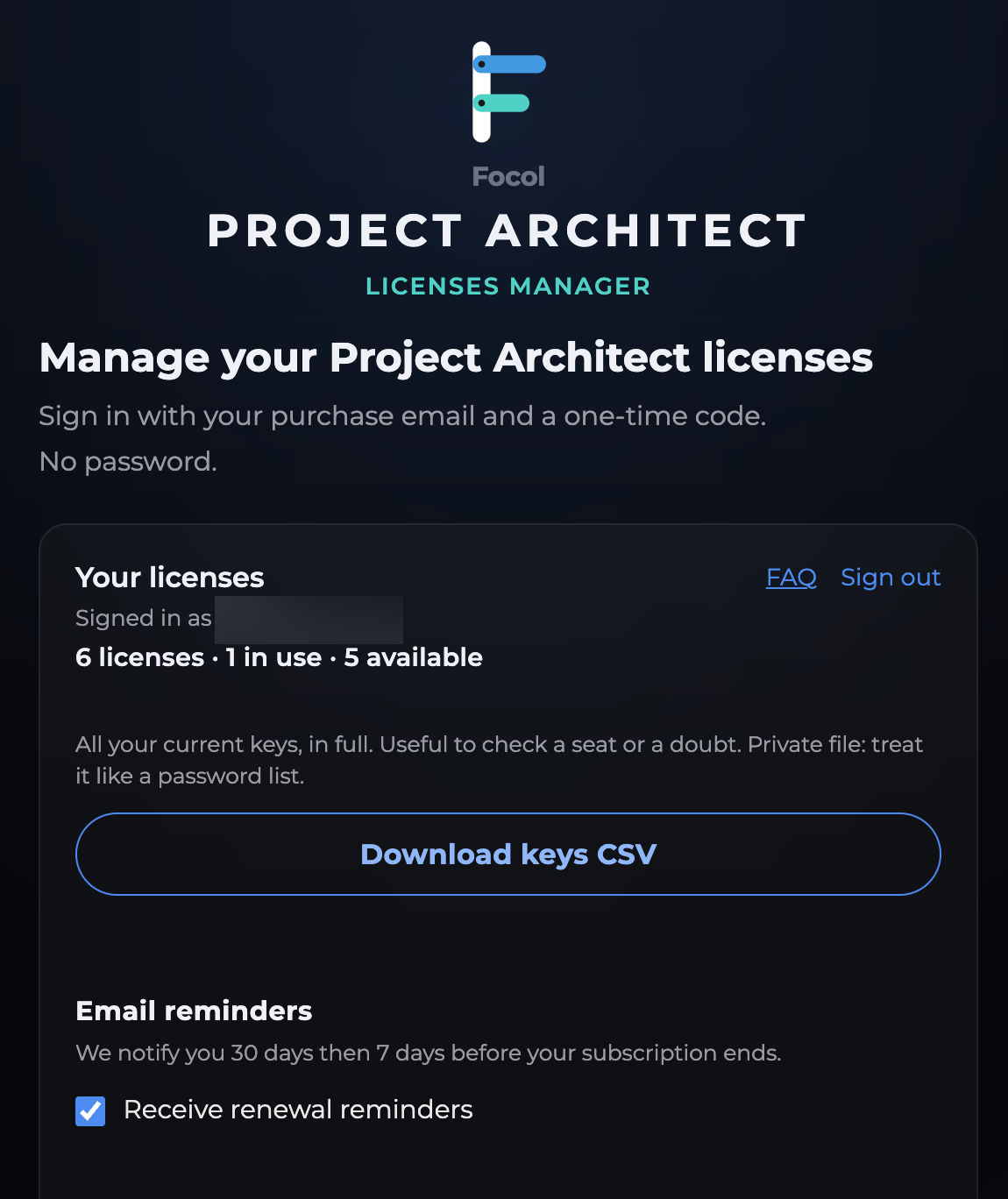
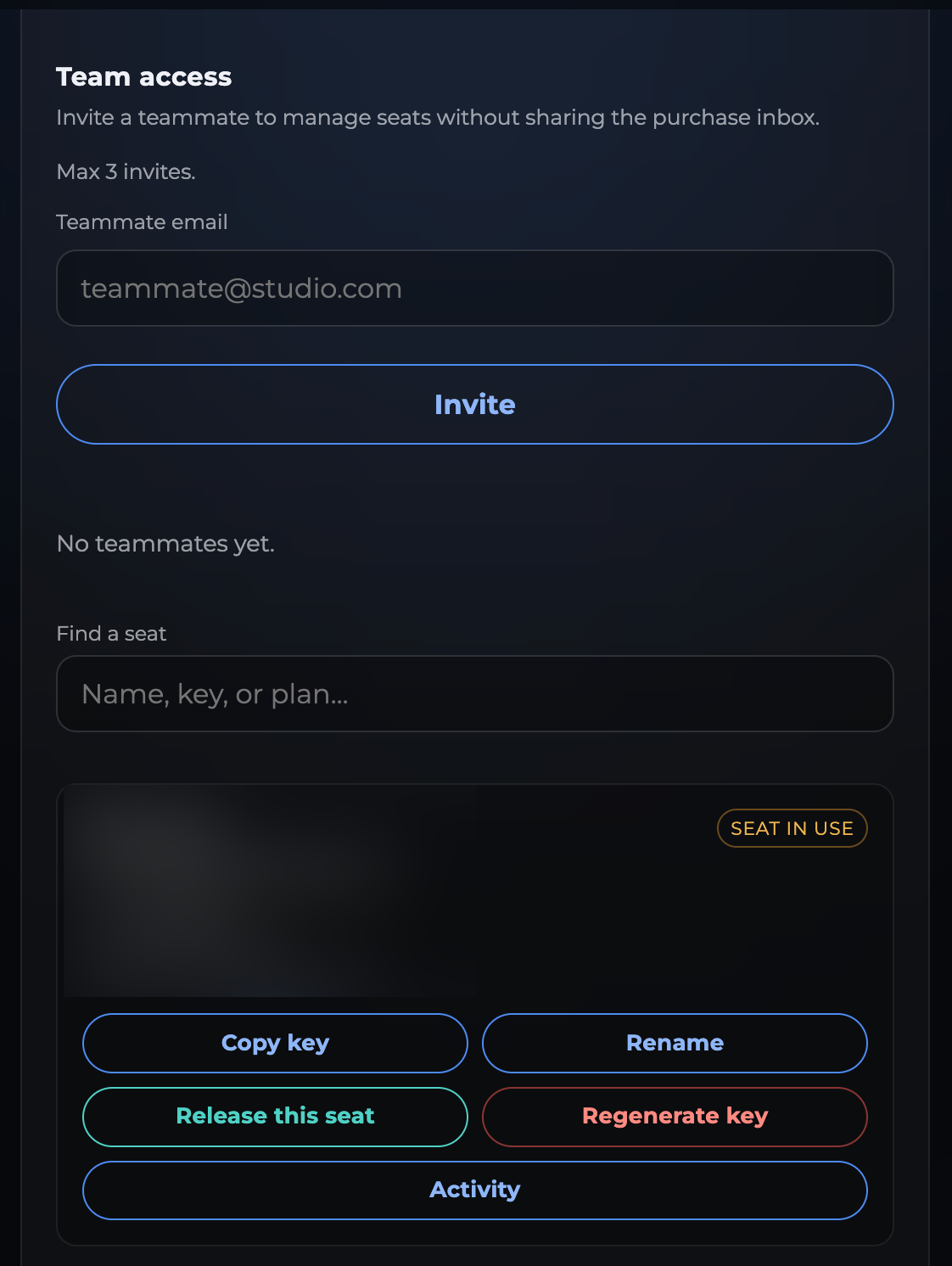
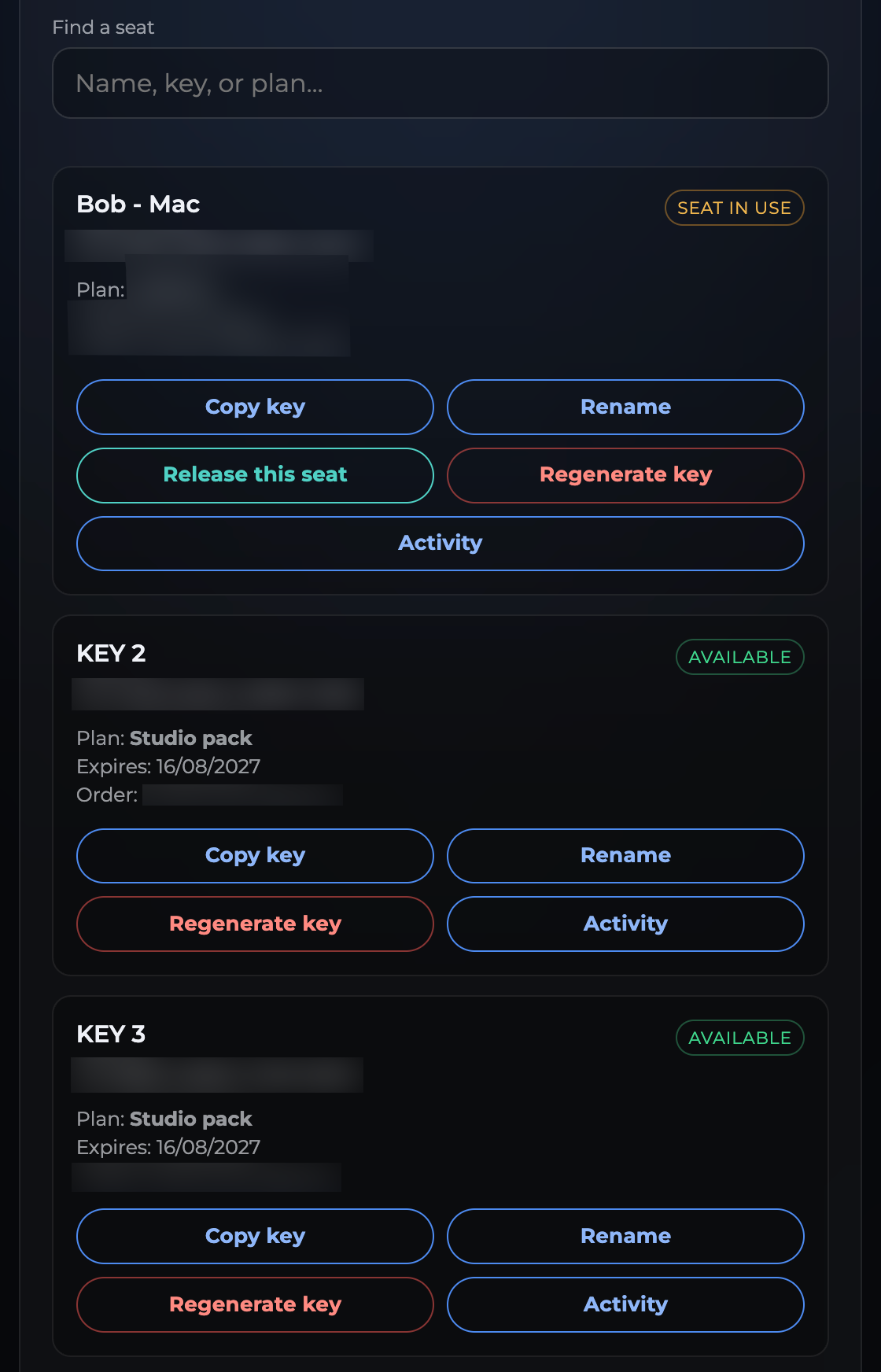
The license portal is built for studios that need autonomy without opening a ticket every time someone leaves or a key is compromised.
- 1 key = 1 seat: desk and laptop of the same editor, yes. Never both Pro at the same time: you activate on one, the other goes Free. Quota: 2 machines / 24 h, as many round trips as you need between those two.
- Rename a seat (first name, room, project): it is a label so you can tell them apart, the key does not change
- Sign in with license email + one-time code (OTP) - no password to share
- Release a seat in one click - the previous machine goes Free in seconds
- Regenerate a compromised key - the old key dies forever, new key by email
- Activity per seat: traceability (regenerated, released, activated, renamed) + CSV export
Simple sort
Panel option: organise by media type only. Also the limited path after trial without a key.
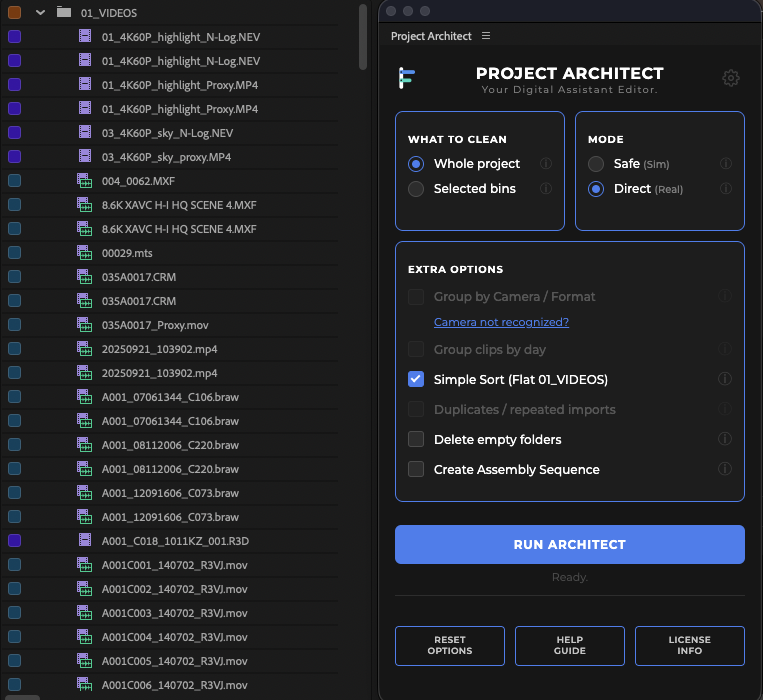
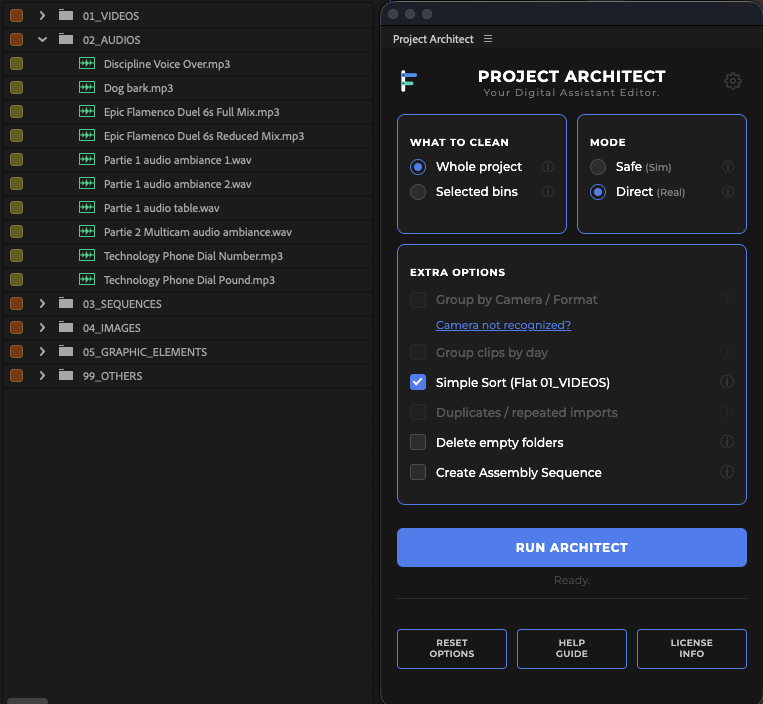
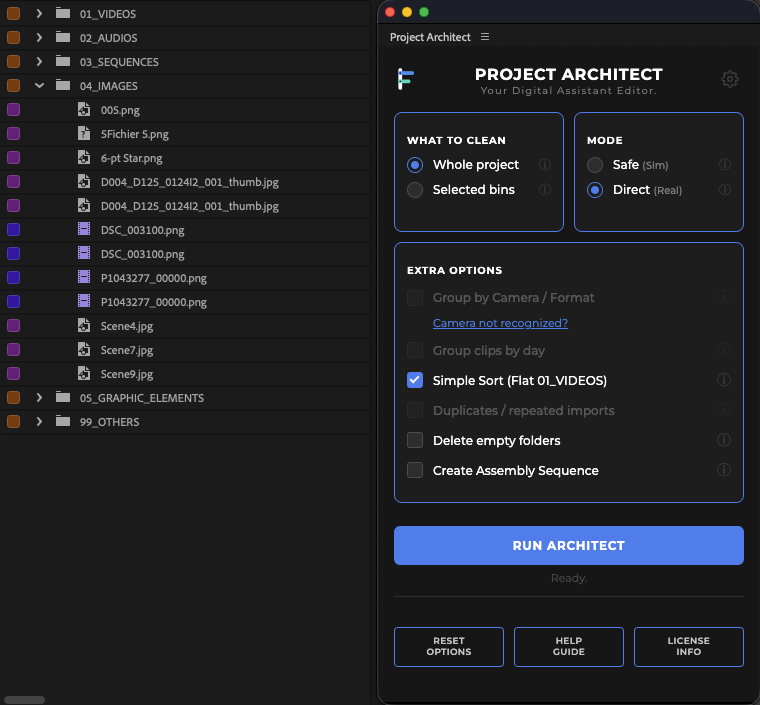
Simple sort is a panel option: media by type only (01_VIDEOS, 02_AUDIOS, sequences, images, misc…) - no brand, model, day, or format split. Camera and day options stay greyed while it is on.
- Use it for a flat first pass, or when you do not need camera / day trees
- After the trial without a key, SAFE and DIRECT stay available but are limited to simple sort
- Premium options unlock again with Pro (trial or paid license)
Discord
A room for editors. Exchange with other editors. Share bins organized with Project Architect. Product surveys. Ask the /pa bot in 12 languages. Sensitive cases: [email protected].
Ready to try it on a real project?
Open beta. 7-day Pro trial.
Try the betaLeave organization to Project Architect and focus on your craft: editing.